Booking references and confirmations
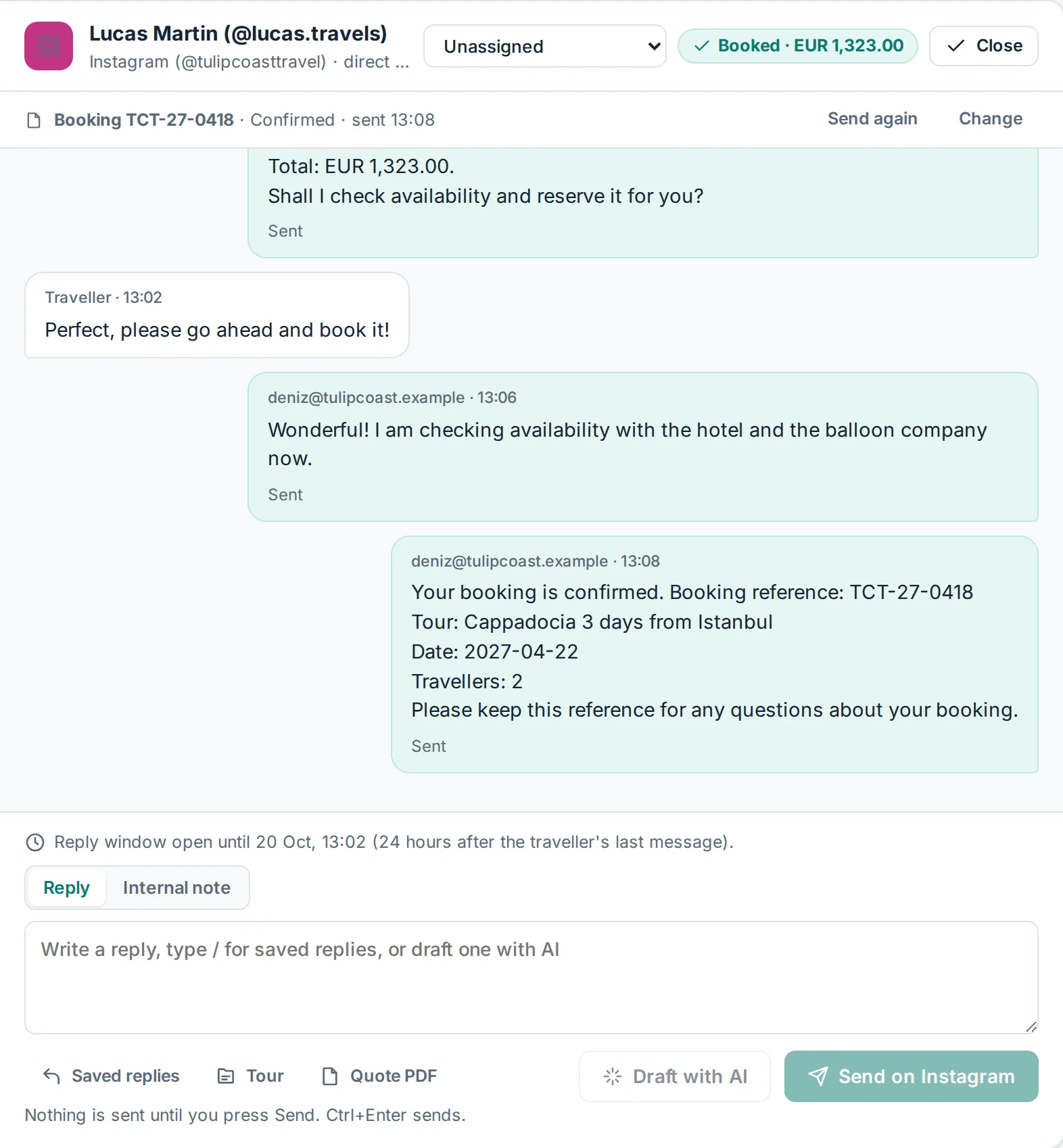
When a traveller books, send them the reference from your booking system in the same conversation, in their language. Fareply never creates the booking itself: you book in your own system as usual.
Add a reference by hand (any booking system)
- Book in your booking system as usual.
- In the Inbox, open the traveller's conversation and click Booking ref.
- Paste the reference, choose Confirmed, On request or Cancelled, and click Save and draft the confirmation.
- The confirmation appears in the reply box in the traveller's language. Add the tour or date if you like, then send.
A confirmed booking also counts as booked in Reports, with the last quoted total. A cancelled one no longer counts.
Let your booking system send it
Owners: open Booking system, click Create link and give the address and the signing secret to whoever runs your booking system (your developer, your booking engine provider, or an automation tool such as Zapier, Make or n8n). The secret is shown only once.
- Each booking change is sent with the reference, the status and the traveller's phone number (or the conversation id).
- Fareply shows the booking in that conversation. With Send the confirmation automatically on, it also sends the confirmation when the channel allows it; otherwise your team sends it with one click.
- The technical details (fields and signature) are on the Booking system page.
Good to know
- Confirmations use fixed wording in 11 languages and never contain prices.
- WhatsApp and Messenger only allow normal messages within 24 hours of the traveller's last message. For WhatsApp,
create a Utility template in your WhatsApp Manager (for example
booking_confirmation, in each language you need), and once Meta approves it choose it on the Booking system page: Fareply then sends it automatically when the window has closed. On other channels, your team sends the confirmation when the traveller writes again. - Replacing the link stops the old address at once. Remove it if you stop using it.