Invite your team and choose roles
Owners invite colleagues on the Team page. Each person signs in with their own email, so every reply and approval shows who did it.
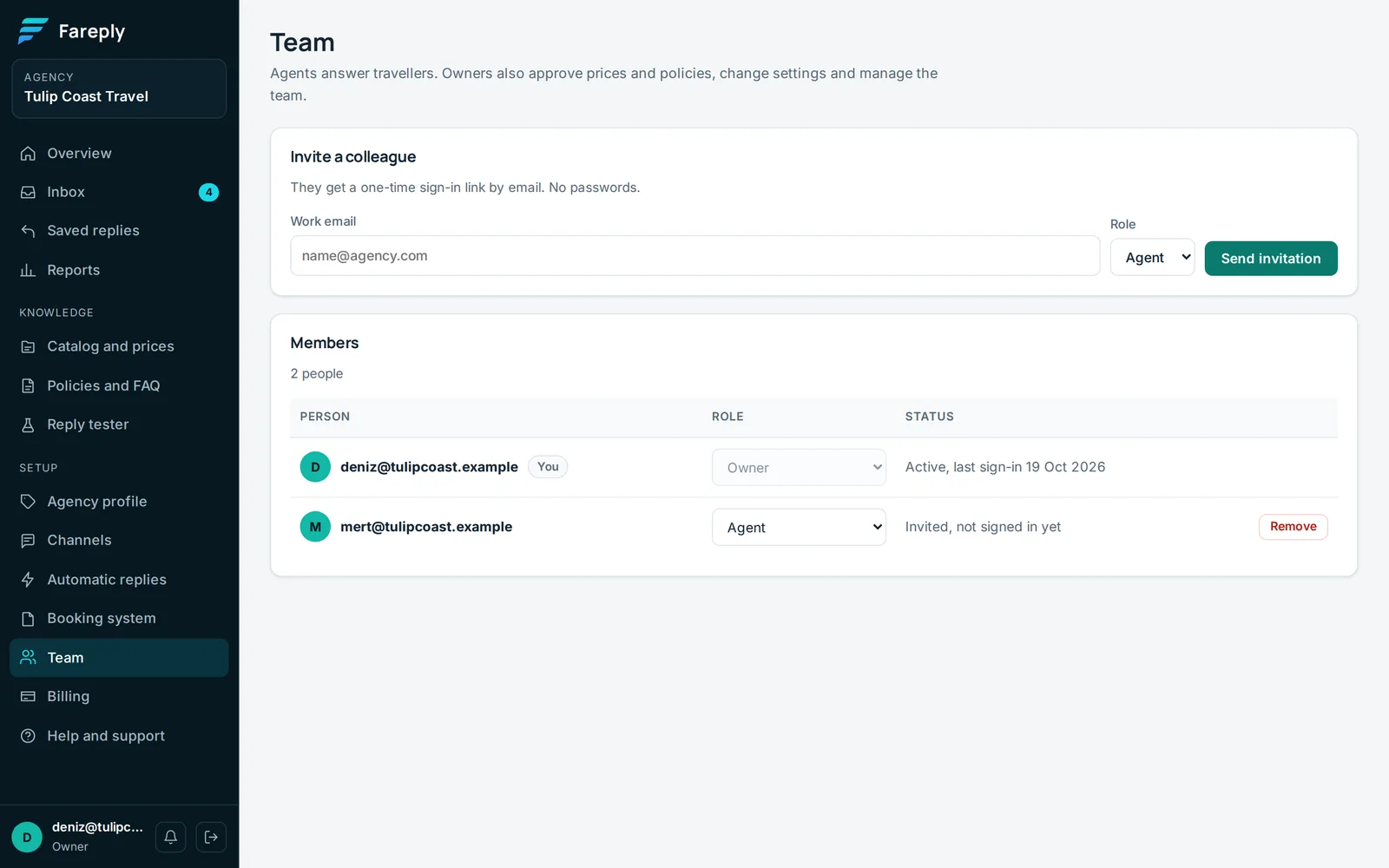
- Open Team and find Invite a colleague (owners only).
- Enter their Work email, choose Agent or Owner, and click Send invitation.
- They get an email with a sign-in link that works for 72 hours. After they sign in, the status changes from "Invited, not signed in yet" to "Active".
Owner or agent?
| Agent | Owner | |
|---|---|---|
| Answer travellers in the inbox, AI drafts, notes, saved replies | Yes | Yes |
| Upload rate sheets, prepare draft prices and policies, Reply tester | Yes | Yes |
| Approve prices and policies | No | Yes |
| Channels, automatic replies, invite people | No | Yes |
| Plan, payment and invoices | No | Yes |
Keep at least two owners, so approvals do not wait when one is away.
The invitation expired
They can sign in anyway: on the sign-in page they enter the same email and receive a normal sign-in link. You can also click Send invitation again.
Changing a role or removing someone
Owners see a role menu and a Remove button next to each person on Team.
- Change the menu to Owner or Agent. The change applies at once.
- Remove ends the person's access straight away and unassigns their open conversations. Their past replies, notes and approvals stay in the history with their name.
- Every agency keeps at least one owner. To hand the agency over, first make the new person an owner, then change your own role or click Leave.
- Sending an invitation again to someone already on the team only resends the link; it does not change their role.
How many people
Free trial and Pro: 5 people. Starter: 2. Agency: 15. When the limit is reached, the invitation shows a message with the way to upgrade on the Billing page.