Group desk guide for DMCs
Your partners (the tour operators and agencies that send you groups) ask the same questions all day: is the hotel confirmed, what is the guide's number, did you get the rooming list. The group desk answers them on WeChat, WhatsApp and email, from your group files, in their language, at any hour. Anything that needs a decision goes to your team. New to the group desk? Start with the overview for DMCs.
How it works
Every group booking (PNR) is a group file in Fareply, with its services: hotels, transfers, guides, activities, meals. When a partner writes "AG-26118 现在什么状态?" on WeChat, Fareply finds the file, reads it and answers with every service, its status and its confirmation number. Your team never typed that answer.
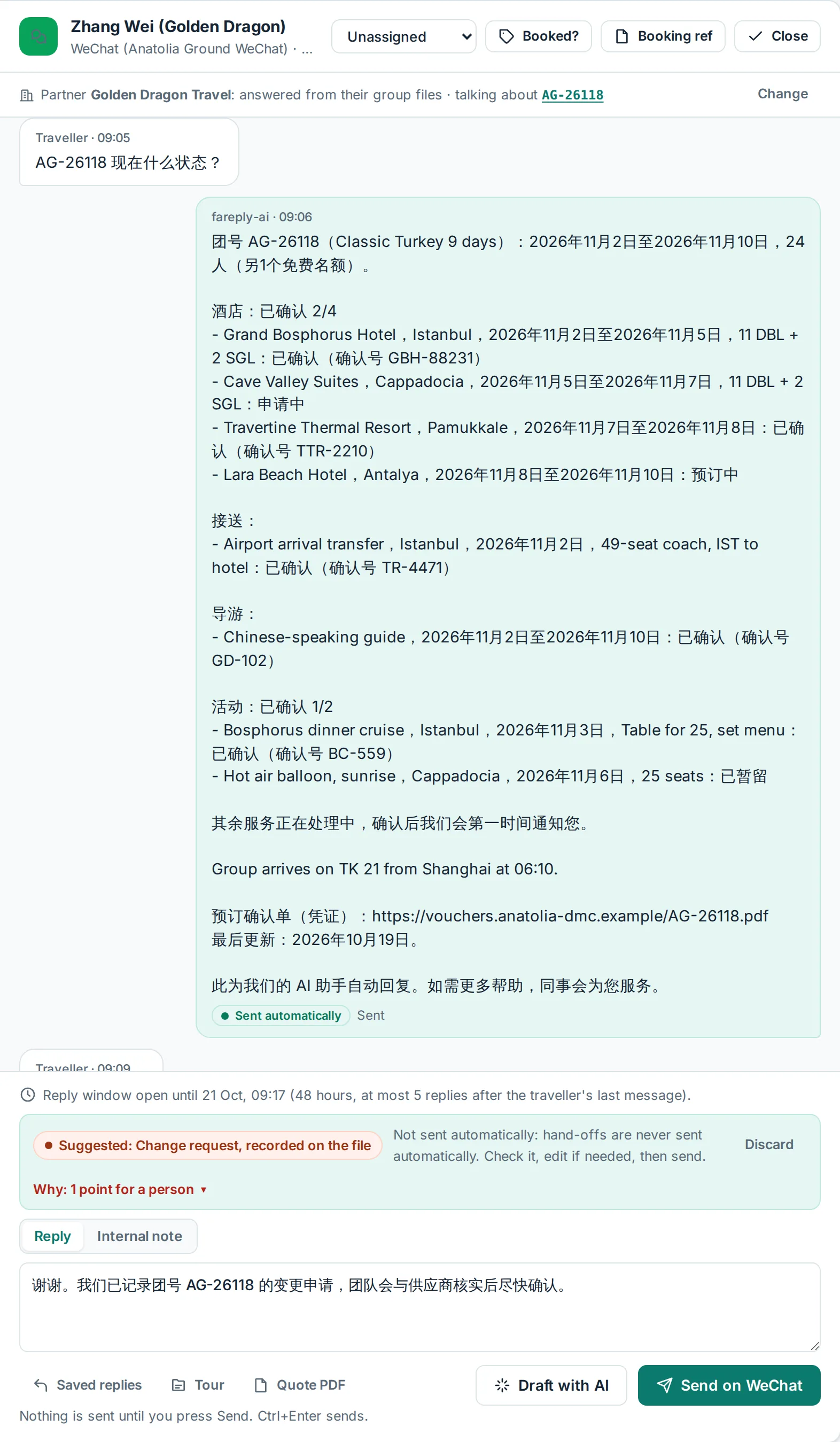
Three rules keep this safe:
- The facts come from the file, never from the AI. Every status, date, phone number, amount and confirmation number is written with fixed wording straight from the file. The AI only works out which group is meant, what is being asked and in which language.
- A partner only hears about its own groups. If someone asks about a group of another company, Fareply neither confirms nor denies that it exists.
- Changes always go to a person. "Add 2 travellers" becomes a change request on the file and a suggested reply for your team. Nothing is changed or promised automatically.
Before you start
- A DMC or DMC Plus plan. The group desk is part of these plans. Choose one on the Billing page, or ask us to switch it on for a pilot. The Group files page shows how many open files your plan allows.
- At least one channel your partners use. WeChat for Chinese tour operators, WhatsApp, or email. See Connect WeChat, Connect WhatsApp and Connect email.
- Your group list. An export from your booking system (Juniper, Tourplan, Lemax or similar) or a spreadsheet. You can also start with one or two files typed by hand.
Setting up takes about an hour for most DMCs. With the DMC onboarding package we do the first import and the channel setup with you.
Step 1: Add your partners
A partner is a company that sends you groups. Open Partners in the menu and click Add partner.
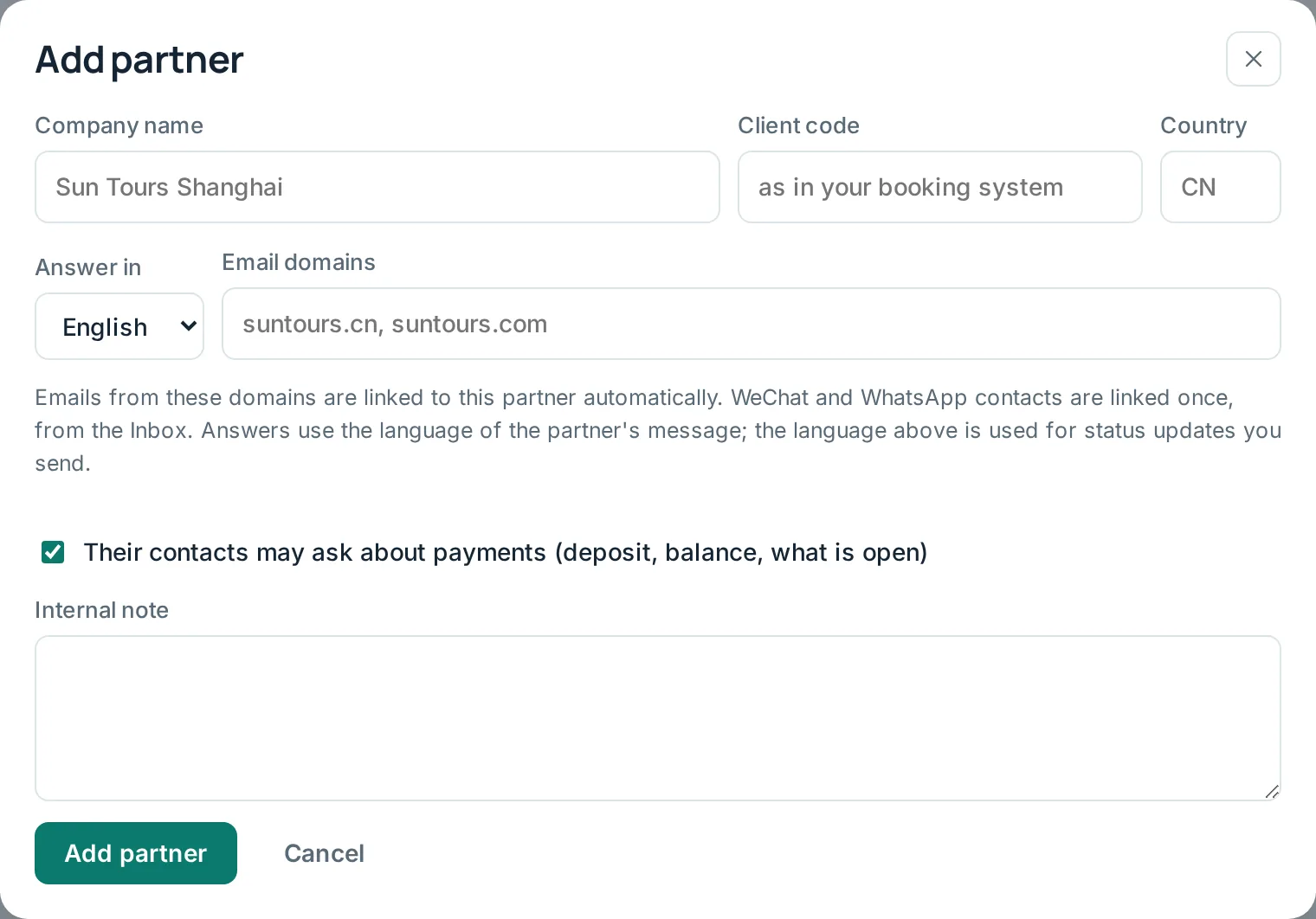
| Field | What to enter |
|---|---|
| Company name | The partner's name as your team knows it. |
| Client code | The code your booking system uses for this client (for example GDT).
Imports use it to put each file under the right partner. |
| Answer in | The language for status updates you send yourself. Answers to questions always use the language of the partner's message. |
| Email domains | For example goldendragon.com. Emails from these domains are linked to the
partner automatically. |
| Payments | Tick it if the partner's staff may ask about deposits and balances. Untick it and payment questions go to your team instead. |
| Internal note | Only for your team. |
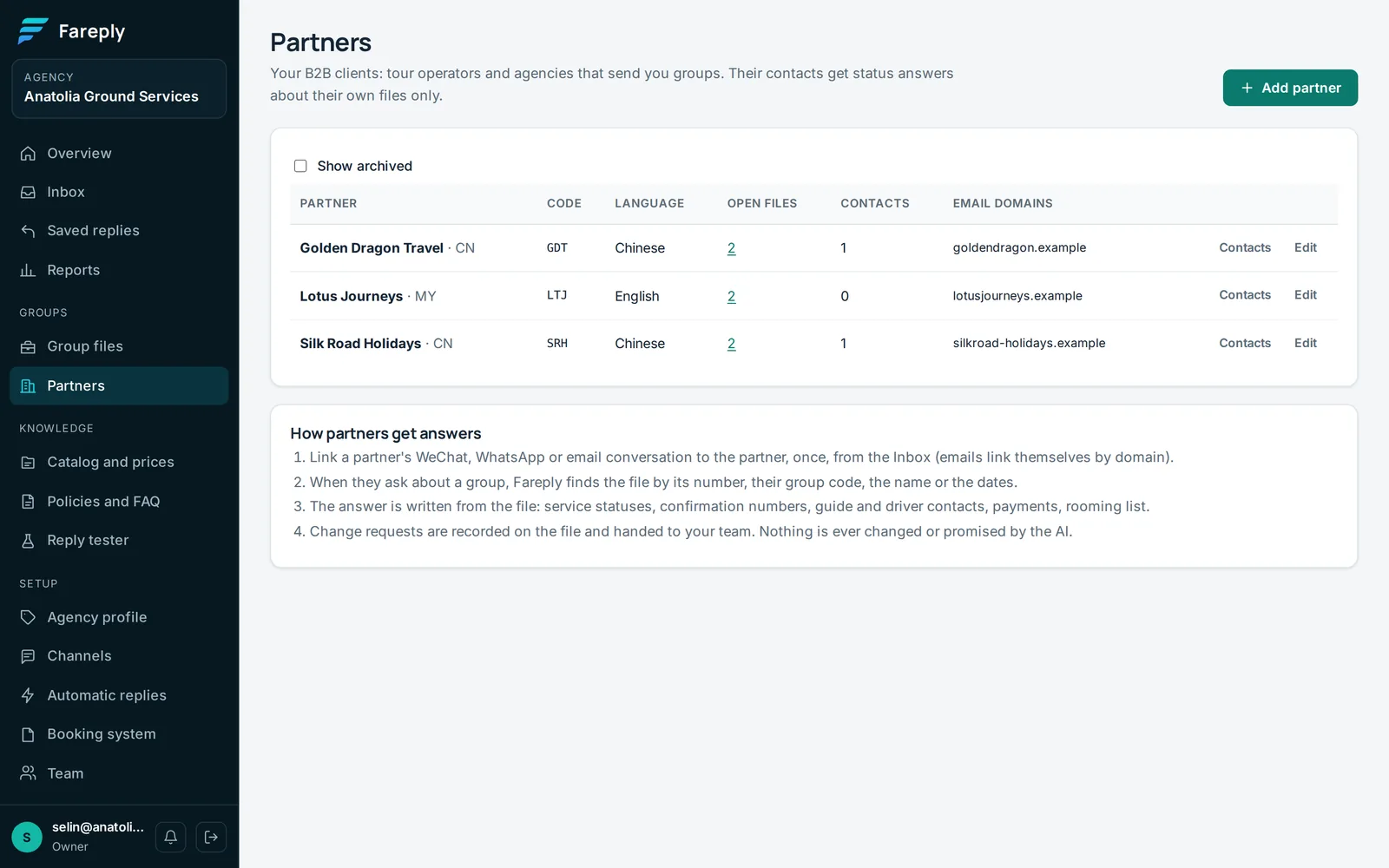
If you import files first, partners that are not in the list yet are created from their client code. You can rename them later.
Step 2: Bring in your group files
There are three ways. Most DMCs import a spreadsheet first, then keep it current by importing again or by connecting their booking system.
Import a spreadsheet (Excel or CSV)
- Open Group files and click Import.
- Export your files from your booking system with one row per service and the file number on every row. Not sure about the layout? Click Download the template.
- Choose the file and click Check the file. Nothing is saved yet: Fareply shows what it read, and lists anything it could not read.
- If it looks right, click Import.
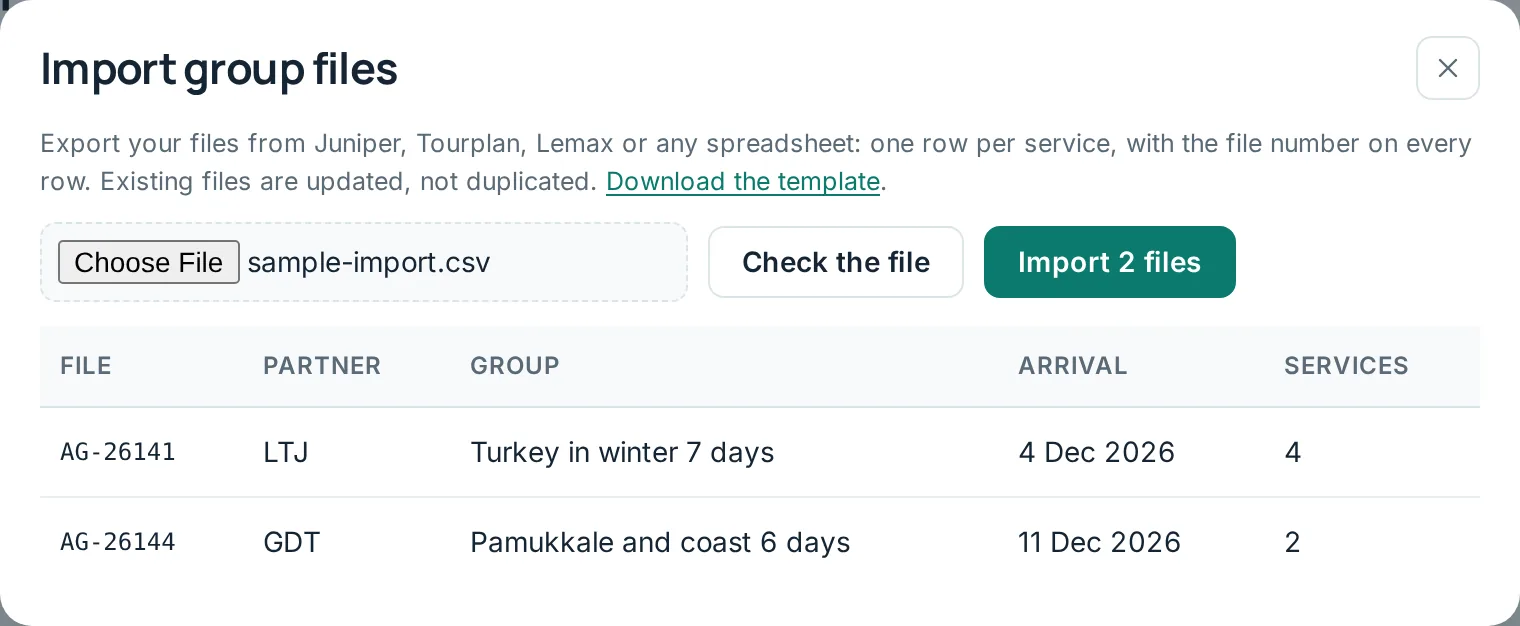
Import again whenever you like. Files with the same number are updated, never duplicated.
Fareply understands the usual column names in English, Chinese, Turkish and Spanish, and the usual status codes:
| In your file | In Fareply |
|---|---|
| OK, CONF, HK, KK, 已确认 | Confirmed |
| RQ, on request, 申请中 | On request |
| OP, option, hold | Option |
| WL, waitlist, 候补 | Waitlisted |
| NA, UC, declined, 满房 | Declined |
| XX, CX, cancelled, 取消 | Cancelled |
| Empty, pending, new | Requested |
A simple booking list works too: a code, a group name such as CN-OT-1411TK and a confirmation link.
Fareply reads the partner code and the arrival date from the group name, and keeps the link as the file's voucher.
Create a file by hand
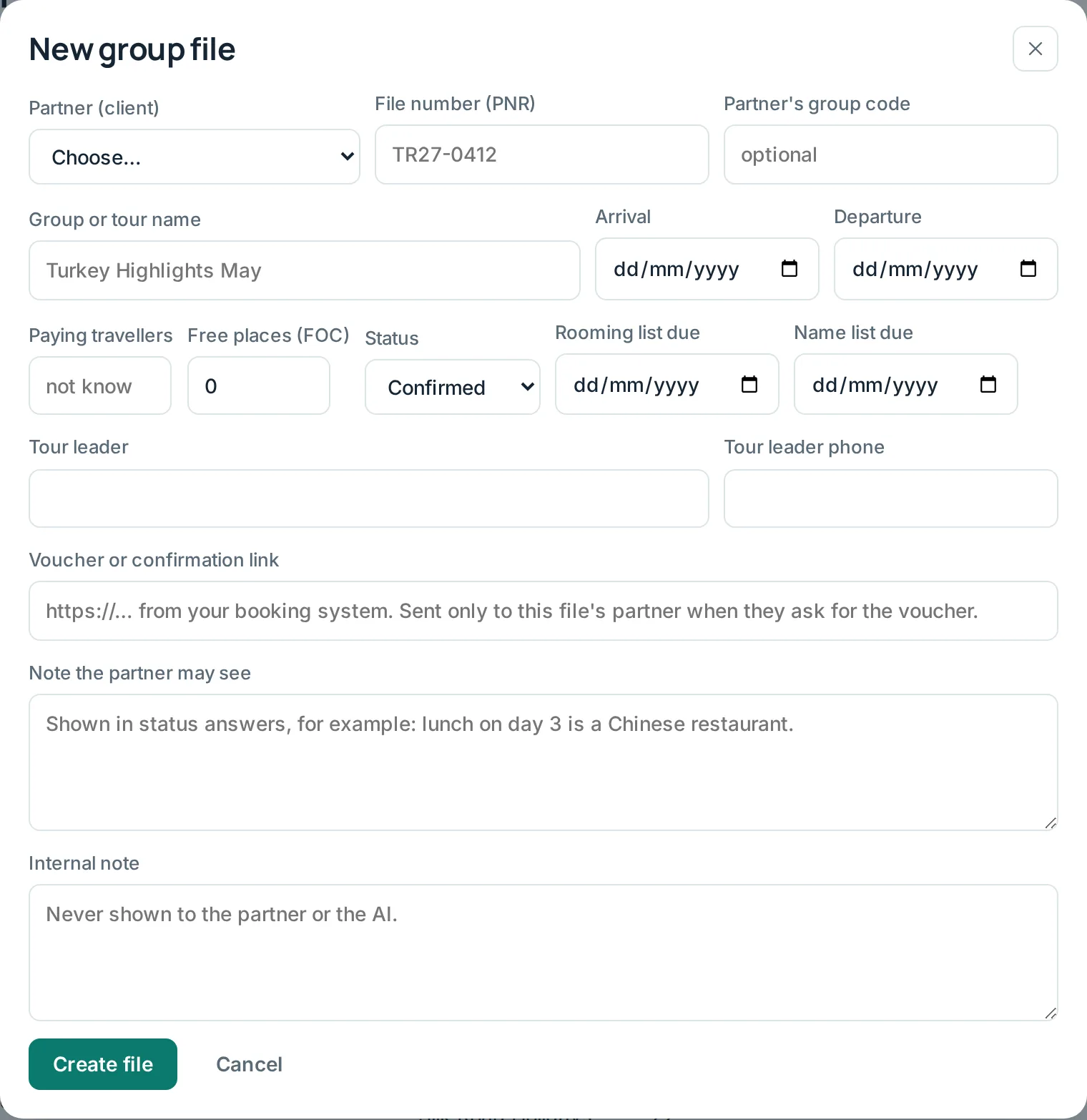
Click New group file. Only the partner, the file number and the dates are required. Leave the number of travellers empty if you do not know it yet.
Connect your booking system
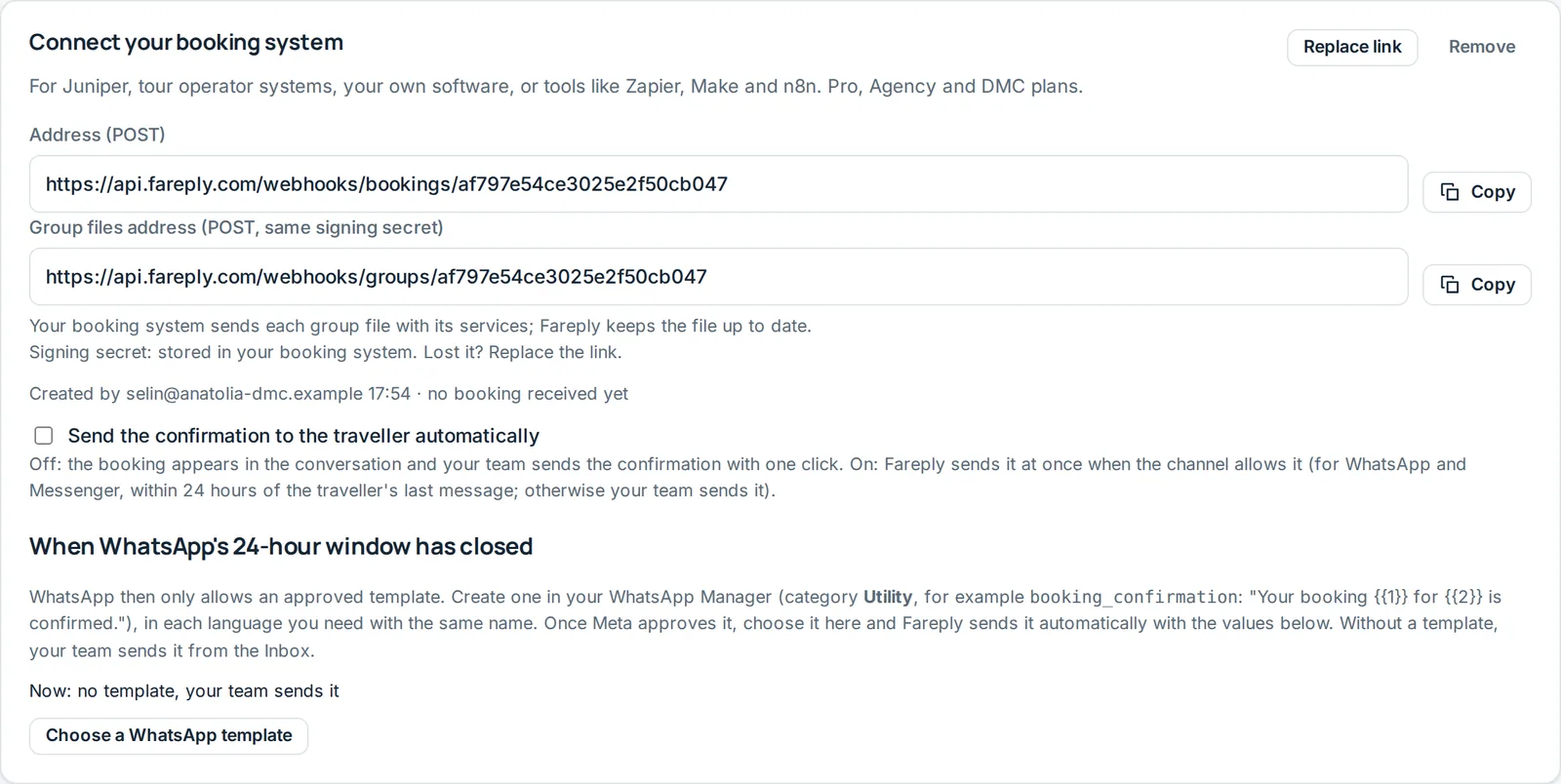
On Booking system, click Create link. You get a Group files address and a signing secret. Your booking system, or an automation tool such as Make or n8n, sends each group file with its services to that address and Fareply keeps the file up to date. Files kept in sync this way show "synced from your booking system".
Step 3: Work in a group file
The Group files page is your board. The cards at the top count open files, groups arriving in the next 14 days, files that need attention and open change requests.
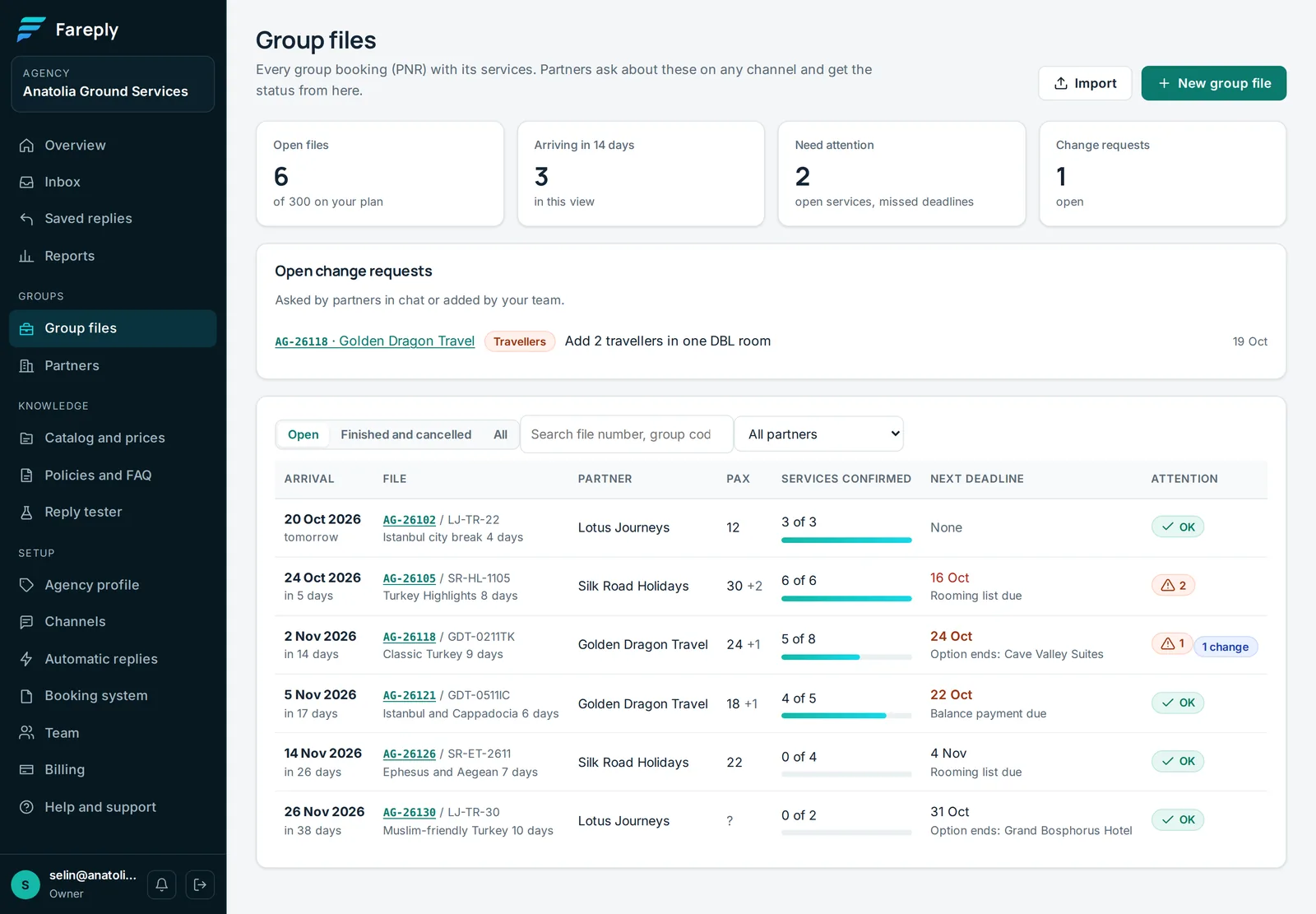
A file needs attention when it arrives within 14 days with services still not confirmed, when a supplier declined a service, or when a deadline was missed. Search by file number, the partner's group code, the group name or the partner.
Services and statuses
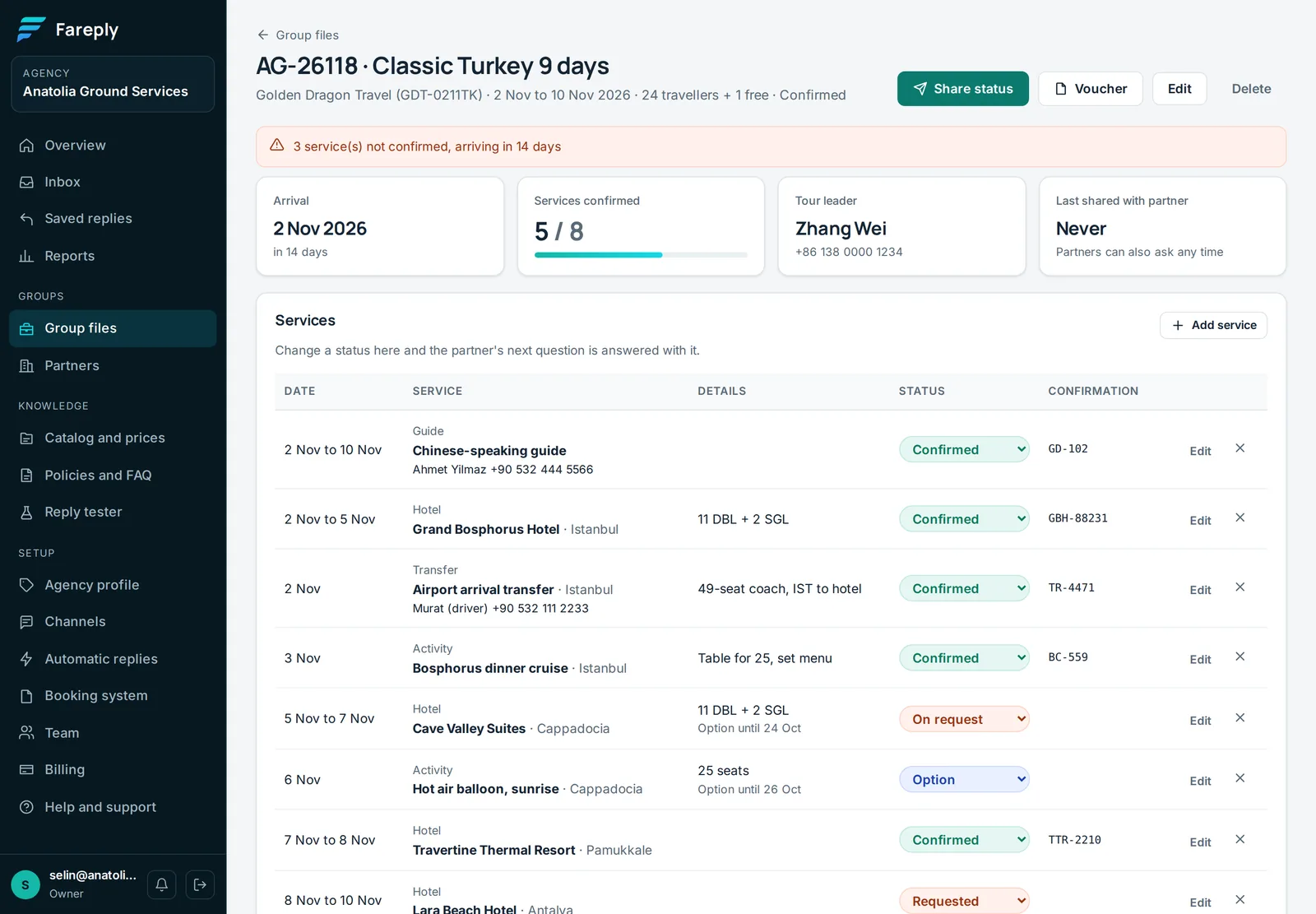
Open a file to see its services. Change a status in the list and it is saved at once. The partner's next question is answered with the new status.
| Status | Meaning | What the partner is told |
|---|---|---|
| Requested | You have not asked the supplier yet, or are about to | Being booked |
| On request | Asked, waiting for the supplier | On request |
| Option | Held until a date | On option |
| Confirmed | Confirmed by the supplier, with its confirmation number | Confirmed, with the number |
| Waitlisted | On the supplier's waiting list | Waitlisted |
| Declined | The supplier said no | Not available, we are arranging an alternative |
| Cancelled | No longer part of the programme | Cancelled |
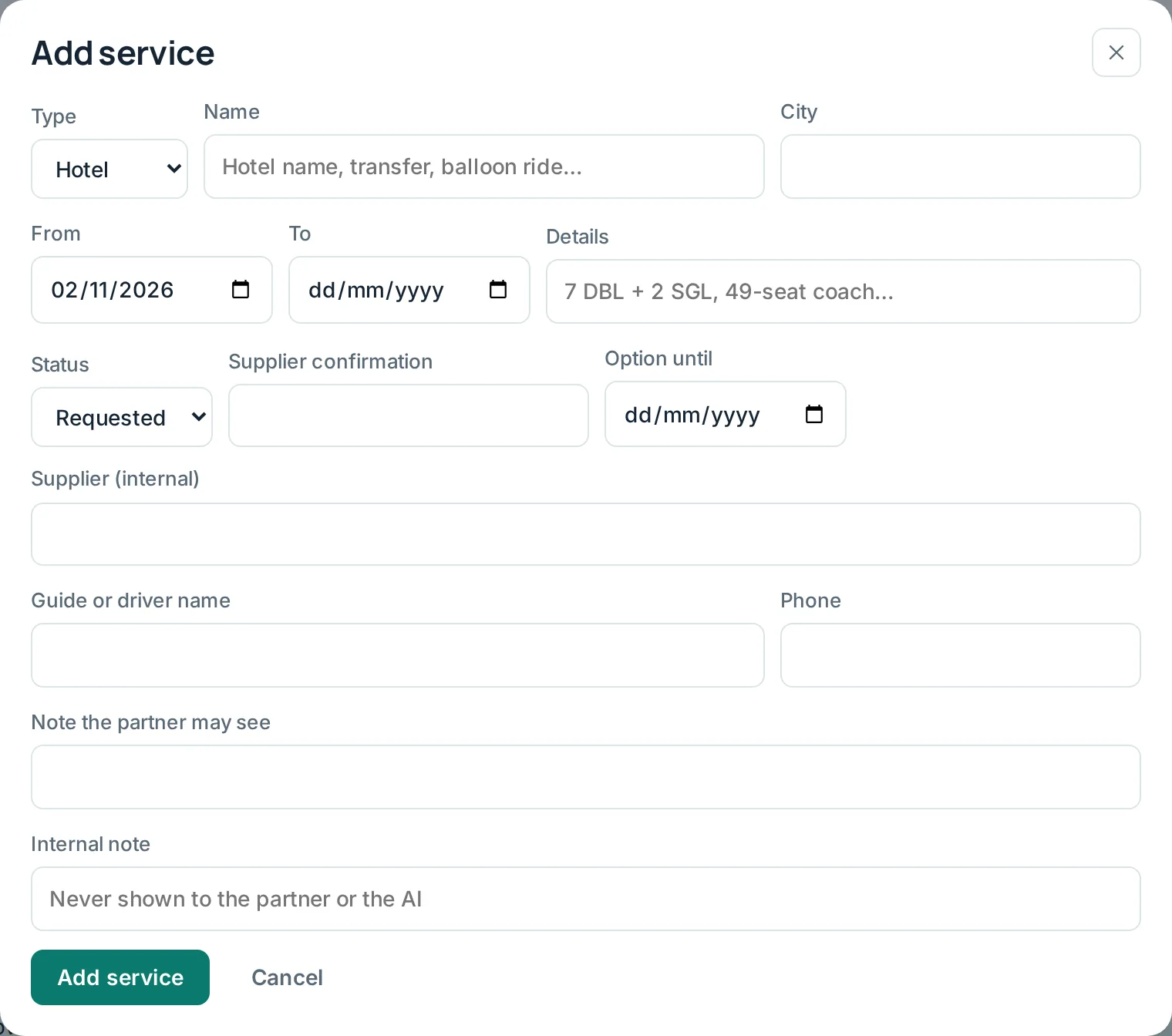
Click Add service or Edit on a service for the details: dates, details such as "11 DBL + 2 SGL", the supplier's confirmation number, the option date, and the guide's or driver's name and phone. Partners get those contacts when they ask for them.
Rooming lists
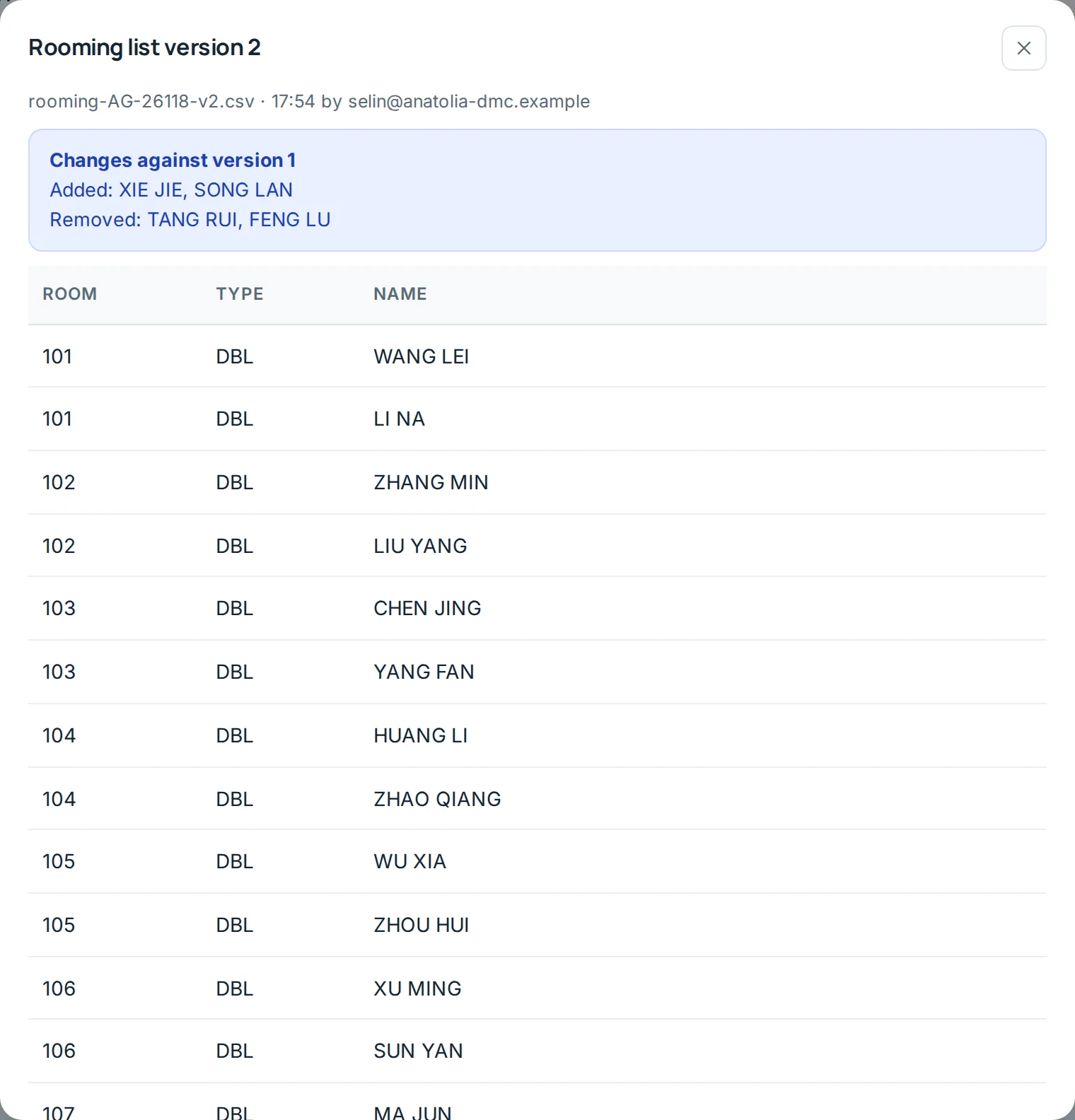
Upload the partner's rooming list as it is, in Excel or CSV, under Rooming list on the file. Chinese, Turkish and English headers and merged cells are fine. Fareply counts the rooms and people, marks the tour leader, and warns about anything odd: three people in a double, more people than booked.
When a new version arrives, upload it too. Fareply shows exactly what changed against the previous version. Check it, then click Mark as checked. Download for hotels (CSV) gives you a clean list to send on.
Payments, change requests and deadlines
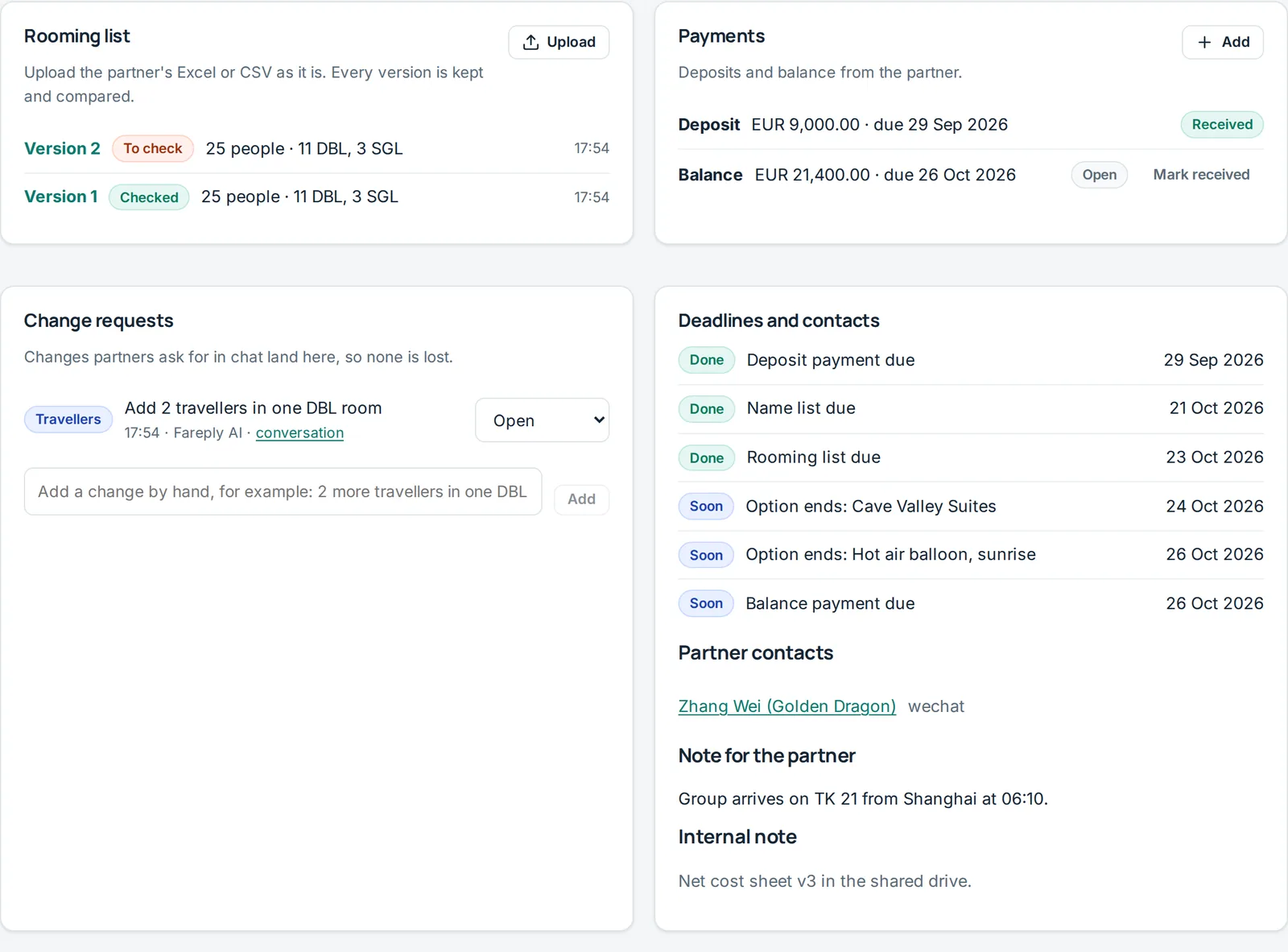
- Payments: add the deposit and balance with their due dates. Click Mark received when the money arrives. Overdue payments show on the board.
- Change requests: what partners asked for in chat, and anything you add by hand. Move each one to In progress, Done or Declined. See Change requests.
- Deadlines: built from the file (rooming list, name list, option dates, payments). Nothing is typed twice. "Soon" means within 7 days.
Step 4: Link partner contacts in the Inbox
Fareply has to know that a WeChat or WhatsApp contact works for a partner. You do this once per contact. Emails from a partner's domain link themselves.
When a new contact mentions one of your file numbers, the Inbox suggests the partner. Click Link to the partner, or Other to choose another one.
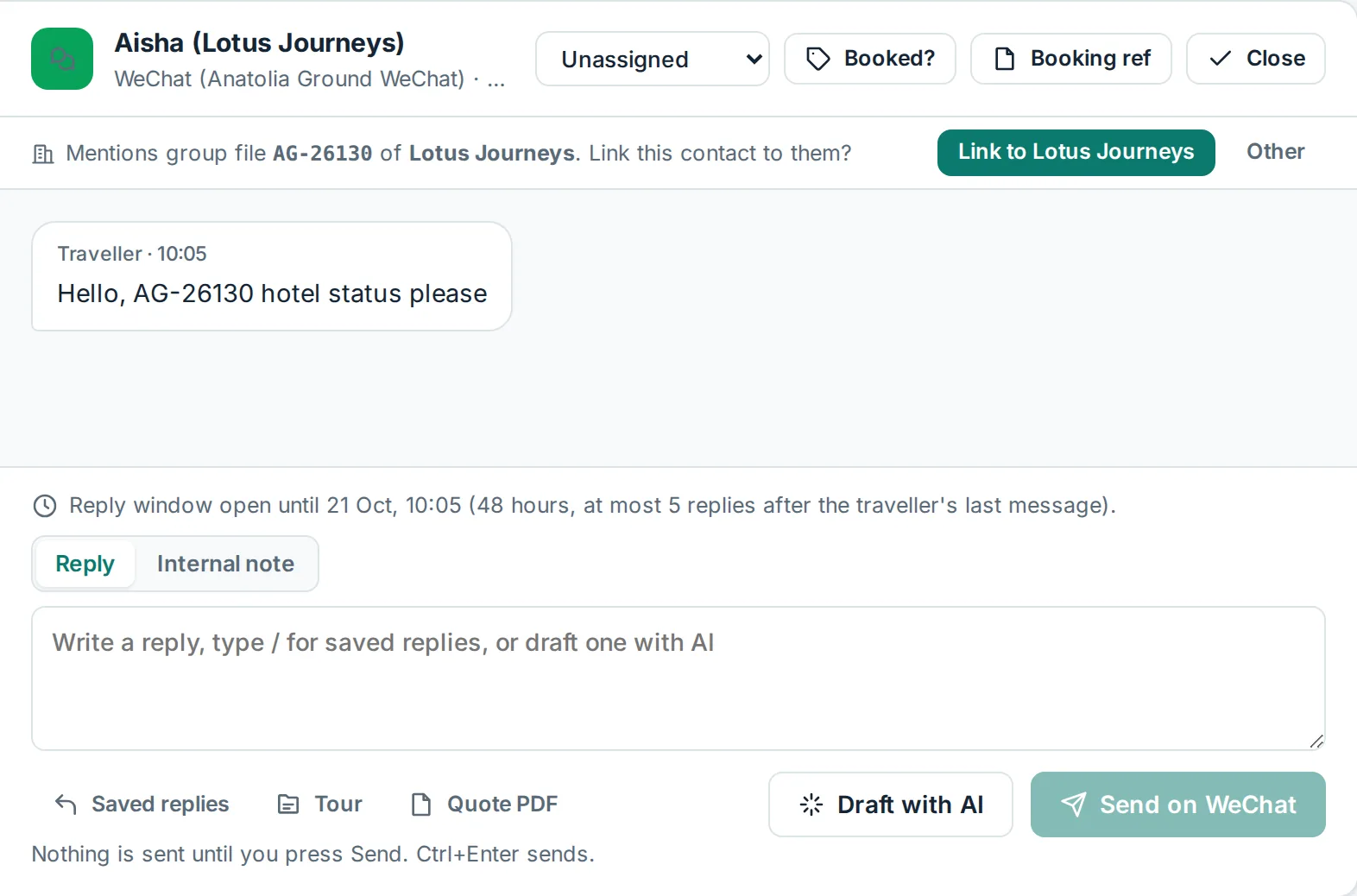
If no file is mentioned, the bar asks "Is this a tour operator or agency sending you groups?". Click Link to a partner. To undo a link, click Change and choose "Not a partner".
Step 5: Turn on automatic answers
Until you turn them on, Fareply prepares each answer as a suggestion and your team sends it. Read a few suggestions first. When you trust them:
- Open Automatic replies.
- Set Policy and status answers to Automatic. These are the status, contacts, payment, rooming and voucher answers.
- Optional: set Asking for details to Automatic too, so "which group do you mean?" also goes out on its own.
- Under Where and when, check the channels and the hours.
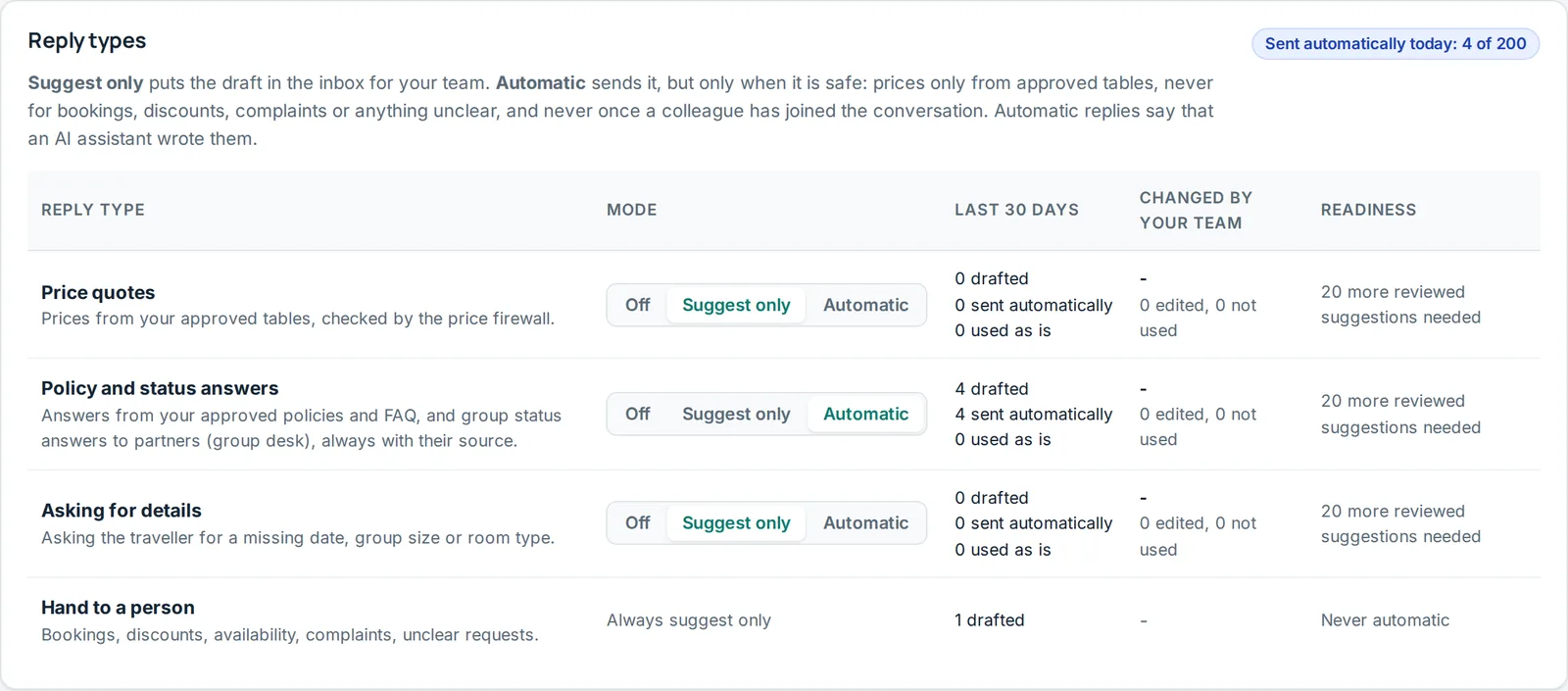
Automatic answers end with a short line saying an AI assistant wrote them. They pause for 24 hours when a colleague replies in the conversation, and Pause all automatic replies stops everything at once.
What partners can ask
Partners write the way they always do, in their own language. Fareply finds the group by its file number, the partner's own group code, the group name or the dates. If it cannot tell which group is meant, it asks and lists their upcoming groups.
| They ask | For example | Fareply |
|---|---|---|
| Status of the group | AG-26118 现在什么状态? | Answers with every service, status and confirmation number |
| One type of service | Are the hotels confirmed? | Answers for that type only |
| Contacts | 导游电话多少? | Gives the tour leader, guide and driver with their phones |
| Payments | 尾款付了多少? | Lists deposit and balance with their state, if the partner may ask about payments |
| Rooming list | Did you get our rooming list? | Says which version arrived, when, and whether it is checked, or when it is due |
| Voucher | 确认单发我一下 | Sends the file's voucher link; without a link, hands over to your team |
| A change | 我们要加2个人 | Records a change request and suggests a reply for your team |
| Anything else | Can you recommend a restaurant? | Hands over to your team |
Answers come in the language of the partner's message: English, Chinese, Spanish, Turkish, French, German, Italian or Arabic.
On WeChat, replies are possible for 48 hours after the partner's last message, with at most 5 replies per message. The Inbox shows how much time is left.
Change requests
When a partner asks for a change, Fareply records it on the file and prepares a reply that says the request was noted and your team will confirm. This reply is never sent automatically.
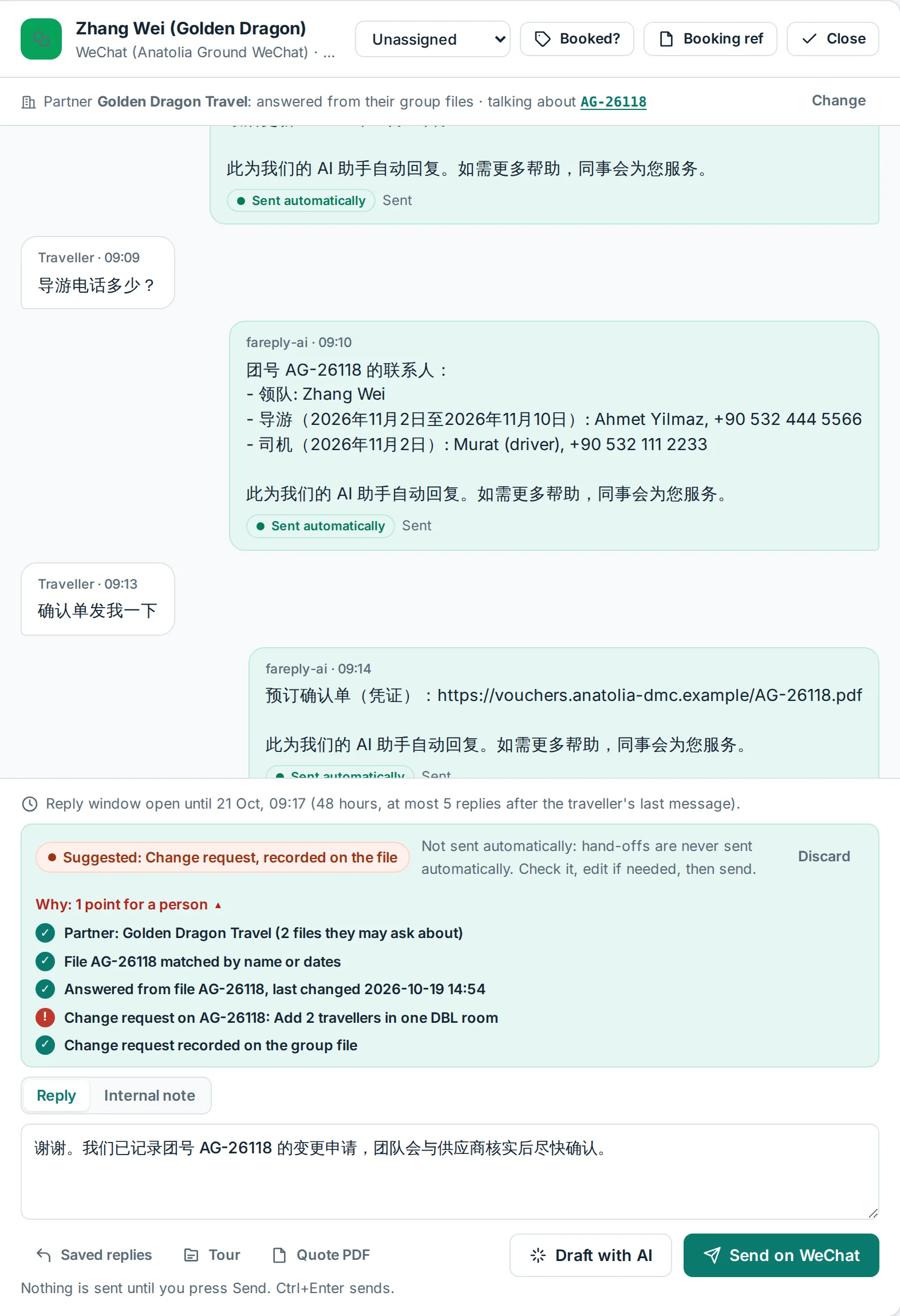
Then:
- Check the suggested reply, edit it if you like, and send it.
- Open the change request from the board or the file. Set it to In progress.
- Make the change with your suppliers and in the file (for example, update the room details or the number of travellers).
- Set the request to Done. The next status answer already shows the new situation.
Send a status update yourself
Before arrival, or after a busy day of confirmations, send the partner the full status without waiting for them to ask. On the file, click Share status.
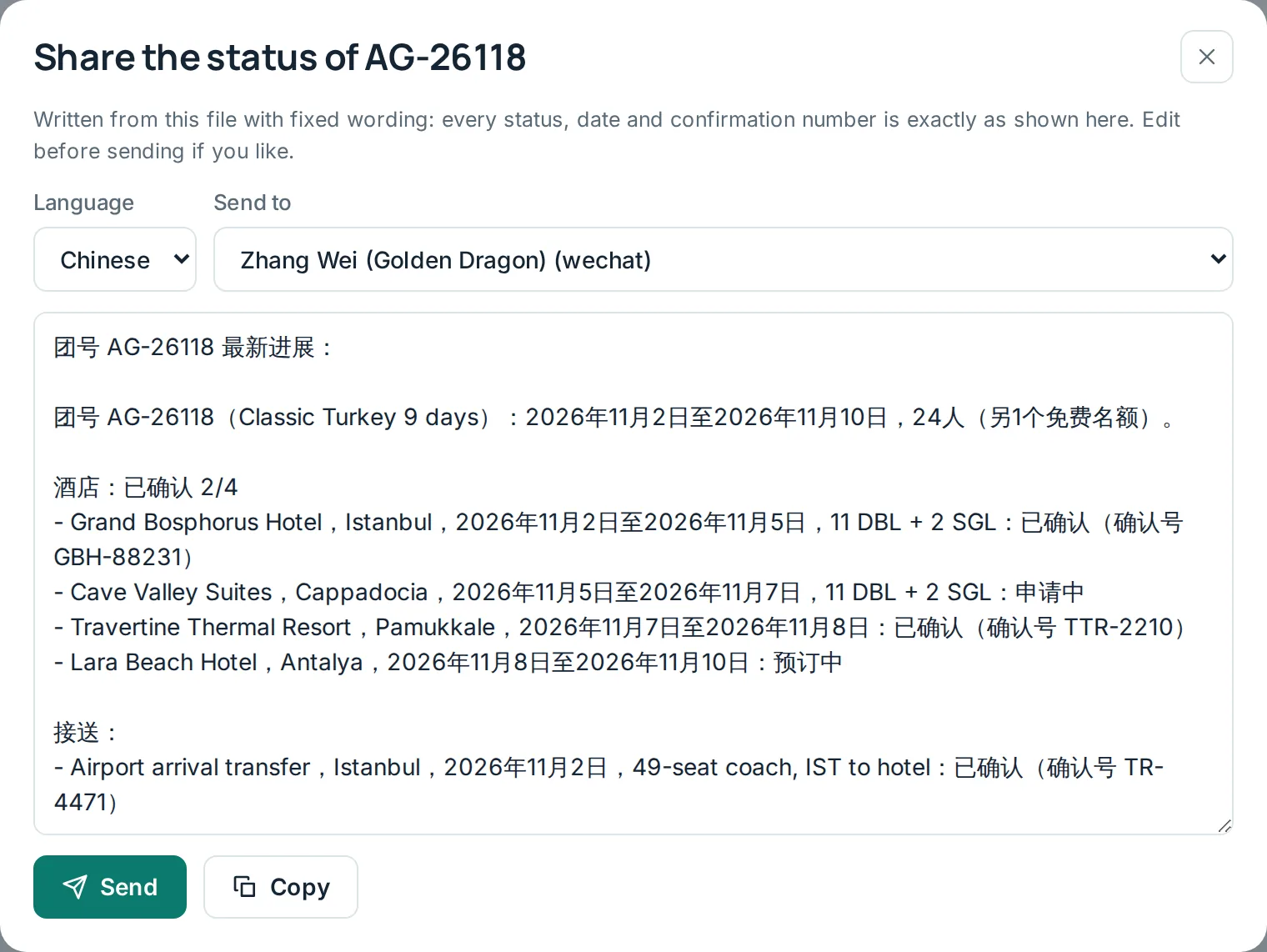
The file then shows when you last shared the status.
A normal day with the group desk
- Morning: open Group files. Work through files that need attention and open change requests.
- When suppliers confirm: update the status and confirmation number on the file. That is all; partners who ask get the new status.
- When a rooming list arrives: upload it, check the changes, click Mark as checked.
- In the Inbox: send or edit the suggested replies for changes and anything Fareply handed over. Link new partner contacts when the bar asks.
- Before each arrival: click Share status so the partner has everything in writing.
- Once a week: import your latest export, or let your booking system keep the files in sync.
What partners never see
- Internal notes on the file and on services, and the internal supplier name.
- Files of other partners. A question about another company's group gets "we could not find group X for your company" and goes to your team.
- Payments, if you unticked payments for that partner.
- Anything the file does not say. When the file has no answer, Fareply hands over instead of guessing.
Questions and problems
A partner got no automatic answer
Check three things: the conversation is linked to the partner (the bar above it shows the partner's name), Policy and status answers is set to Automatic, and the channel and hours under Where and when allow it. On WeChat, the 48-hour window must still be open. If a colleague replied in the last 24 hours, Fareply leaves the conversation to them.
Fareply asked "which group do you mean?"
The message named no file, or named several. Ask partners to write the file number or their own group code. Fill in the partner's group code on each file so both numbers work.
The import shows problems
Each line says which row and what is missing, for example a date it cannot read or a partner code that is not in your Partners list. Fix the file and check it again. Nothing is saved until you click Import.
The answer shows an old status
Answers always use the file as it is now. Update the status on the file, or import your latest export. The Why list on each answer shows when the file was last changed.
Can partners see the whole file?
No. They get answers to what they ask, written from the parts of the file meant for them. Internal notes, supplier names and other partners' files are never used.
How many files can be open?
Your plan sets the number of files open at the same time. Finished and cancelled files do not count. The Group files page shows your use.