First steps with Fareply
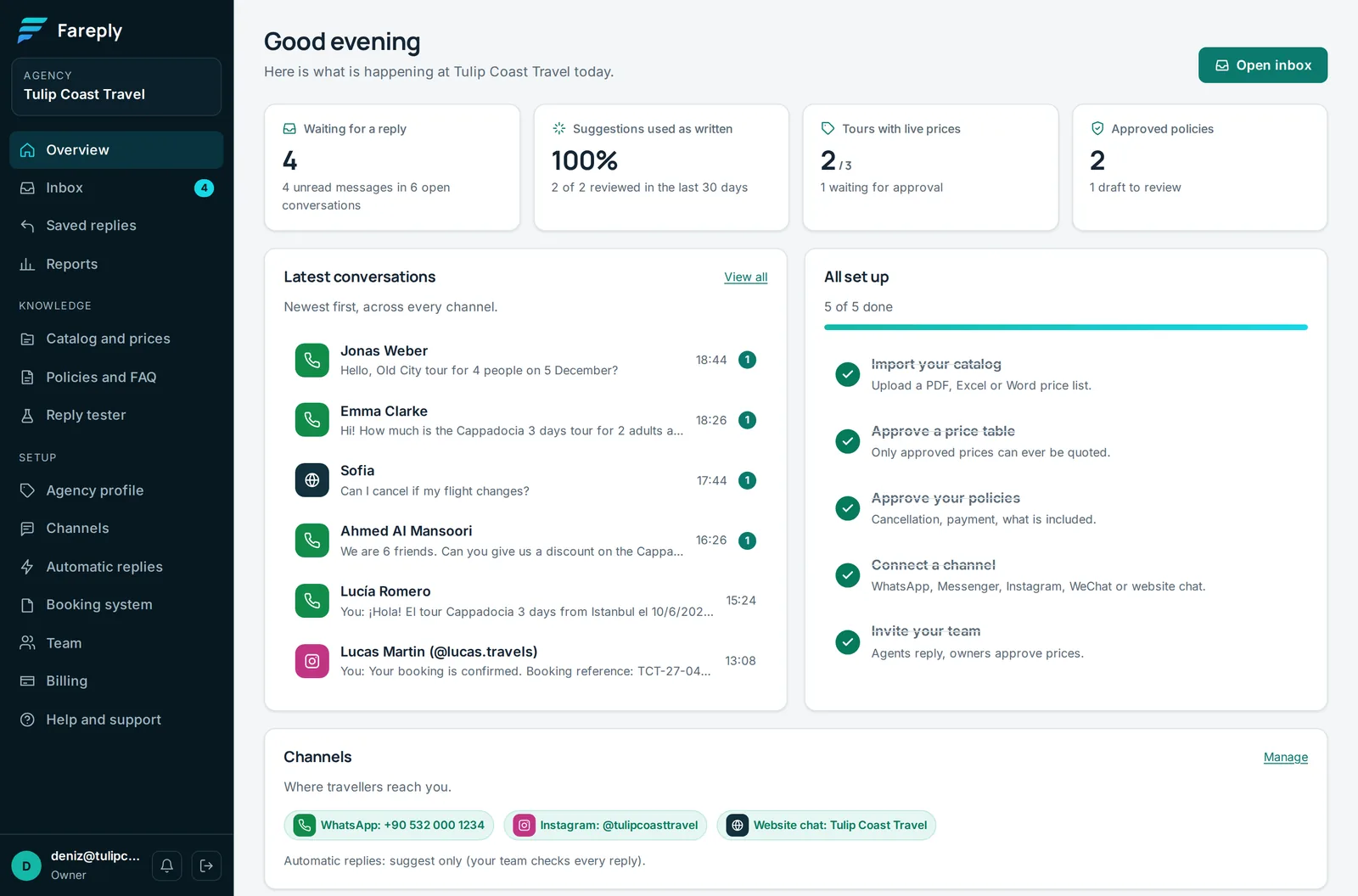
Fareply answers travellers only from prices and texts an owner approved. Set those up first, then connect a channel. The Overview page shows this checklist and ticks each step when it is done.
Want every step in detail, with screenshots? Read the complete guide for travel agencies (also as a PDF). DMCs and ground handlers: see the group desk guide.
- Import your catalog. On Catalog and prices, upload the rate sheet you already send to partners (PDF, Excel, Word or a photo). See upload a rate sheet.
- Approve a price table. Open each tour, check the draft and click Approve. Only approved tables are ever quoted.
- Approve your policies. On Policies and FAQ, add or approve your cancellation terms, what is included, pick-up times and similar answers. See policies and FAQ.
- Connect a channel. On Channels, add WhatsApp, Messenger and Instagram, website chat, Telegram, LINE or WeChat. First check what you need for each channel; some, like WeChat, take weeks to prepare.
- Invite your team. On Team, invite colleagues as agents or owners. See team and roles.
Try it before travellers do
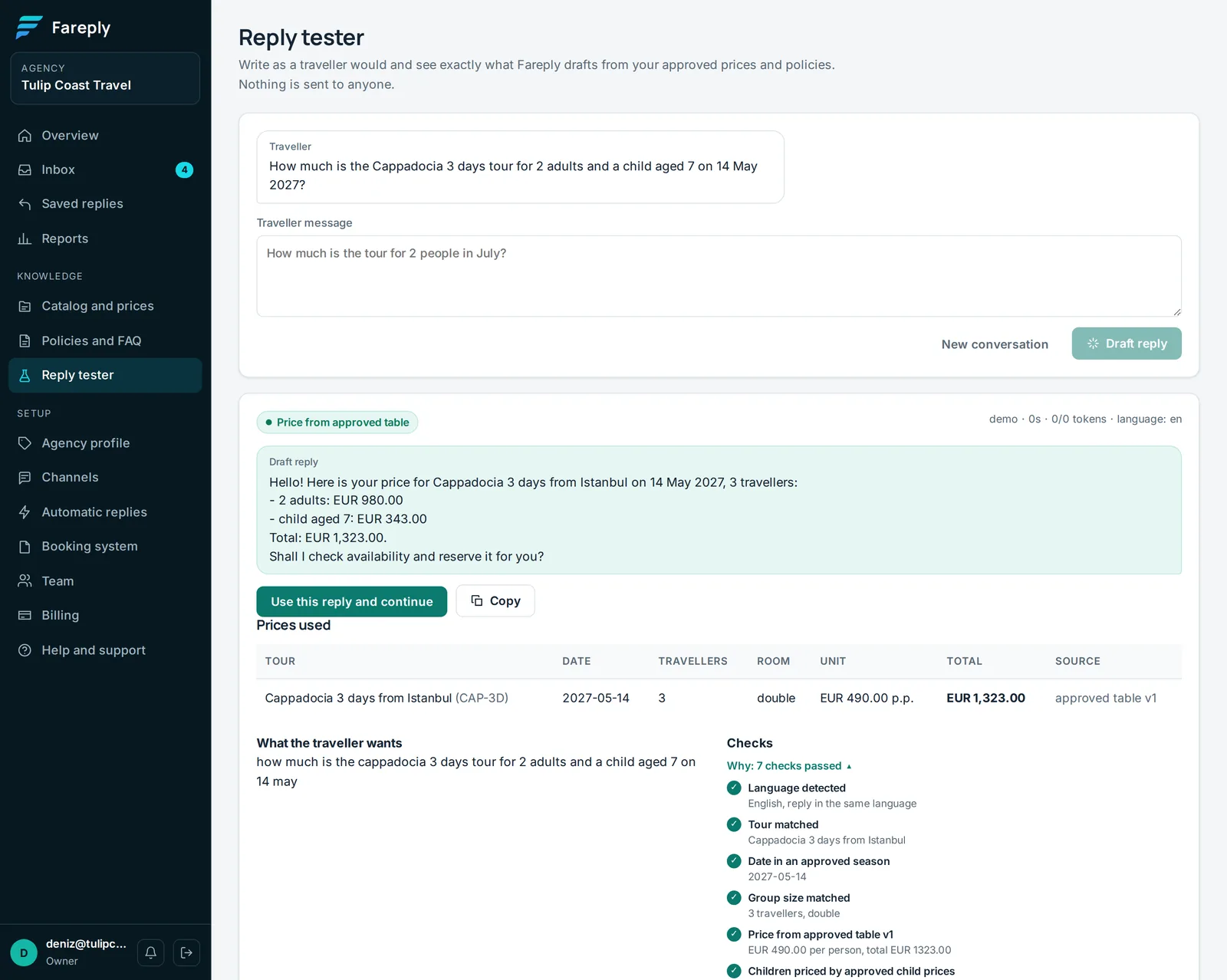
Open Reply tester, write a question the way a traveller would ("How much is the 3-day tour for 2 adults on 12 May?") and click Draft reply. You see the exact reply, which price table it used, and why. Nothing is sent to anyone.
Start with suggestions
Every reply type starts as Suggest only: Fareply drafts, a person checks and sends. Keep it that way for the first two weeks, then switch the reply types you trust to Automatic. See automatic replies.