Complete guide for travel agencies
Fareply puts WhatsApp, Instagram, Messenger, your website chat and email in one inbox, and drafts every reply for your team: prices from the tables you approved, answers from the texts you approved, in the traveller's language. This guide takes you from an empty account to your first automatic quote.
How Fareply works
A traveller writes on WhatsApp: "How much is the Cappadocia 3 days tour for 2 adults and our daughter (7) on 14 May 2027?". About ten seconds later the reply is waiting in your inbox, with the price for two adults and the child, taken from your approved price table. Someone on your team checks it and presses Send.
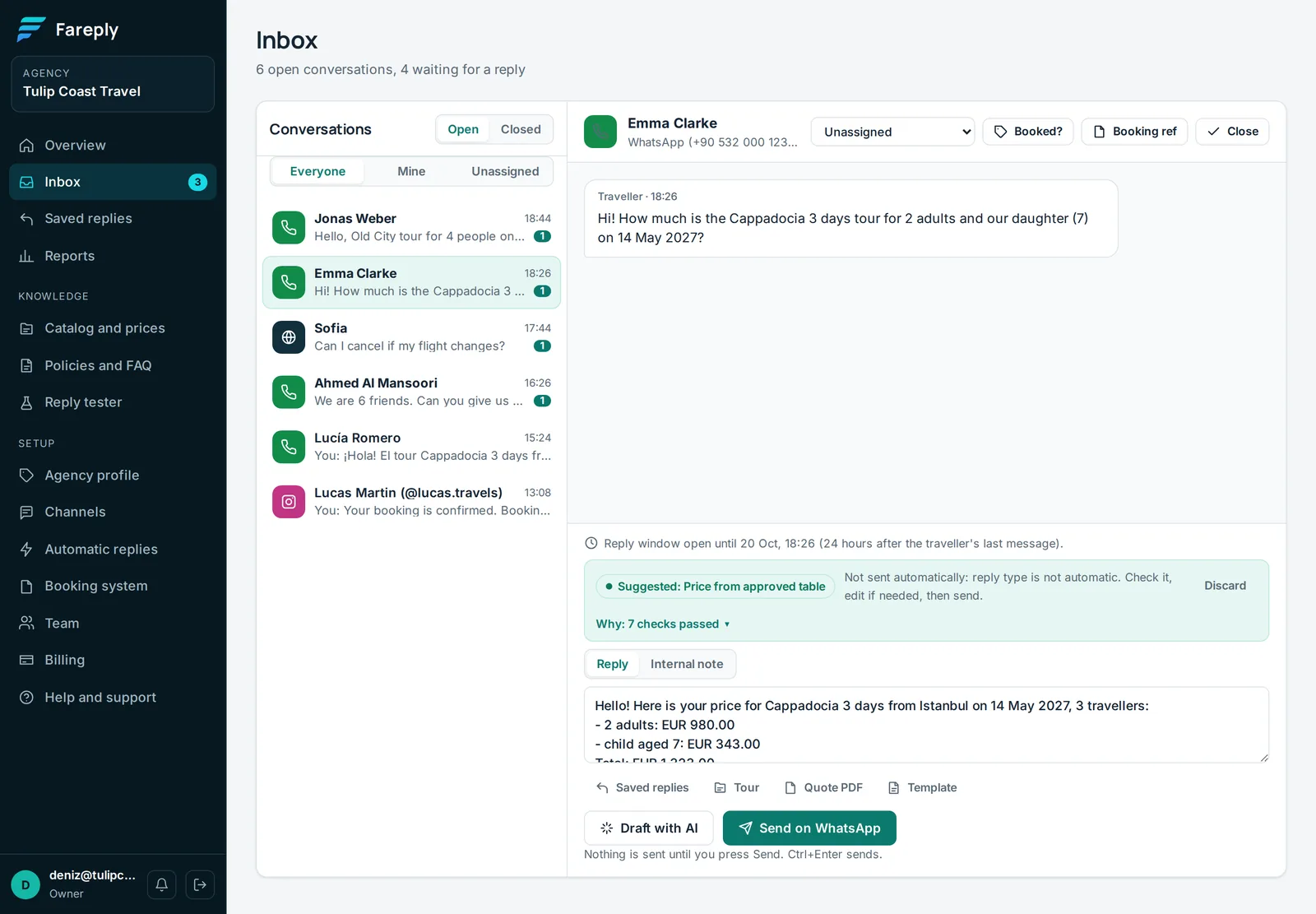
Three rules decide what Fareply may say:
- Prices come only from tables an owner approved. The AI never writes an amount itself: the price engine calculates it, and a price check blocks any reply with a number that did not come from your table.
- Other answers come only from texts an owner approved on Policies and FAQ, such as your cancellation terms.
- Anything else goes to a person: bookings, discounts, complaints, special requests, or anything unclear. Fareply never guesses.
Before you start
- Your rate sheet. The price list you already send to partners or travellers: PDF, Excel, Word or even a photo.
- Your booking terms. Cancellation rules, what is included, pick-up times: the answers you give every day.
- Access to your channels. Your WhatsApp Business number, your Facebook Page and Instagram account, and your website if you want the chat there.
Every new agency starts with a 14-day free trial with Pro features and 500 AI replies, no card needed. Owners choose a plan on Billing; see plans, AI replies and invoices.
Step 1: Your agency profile
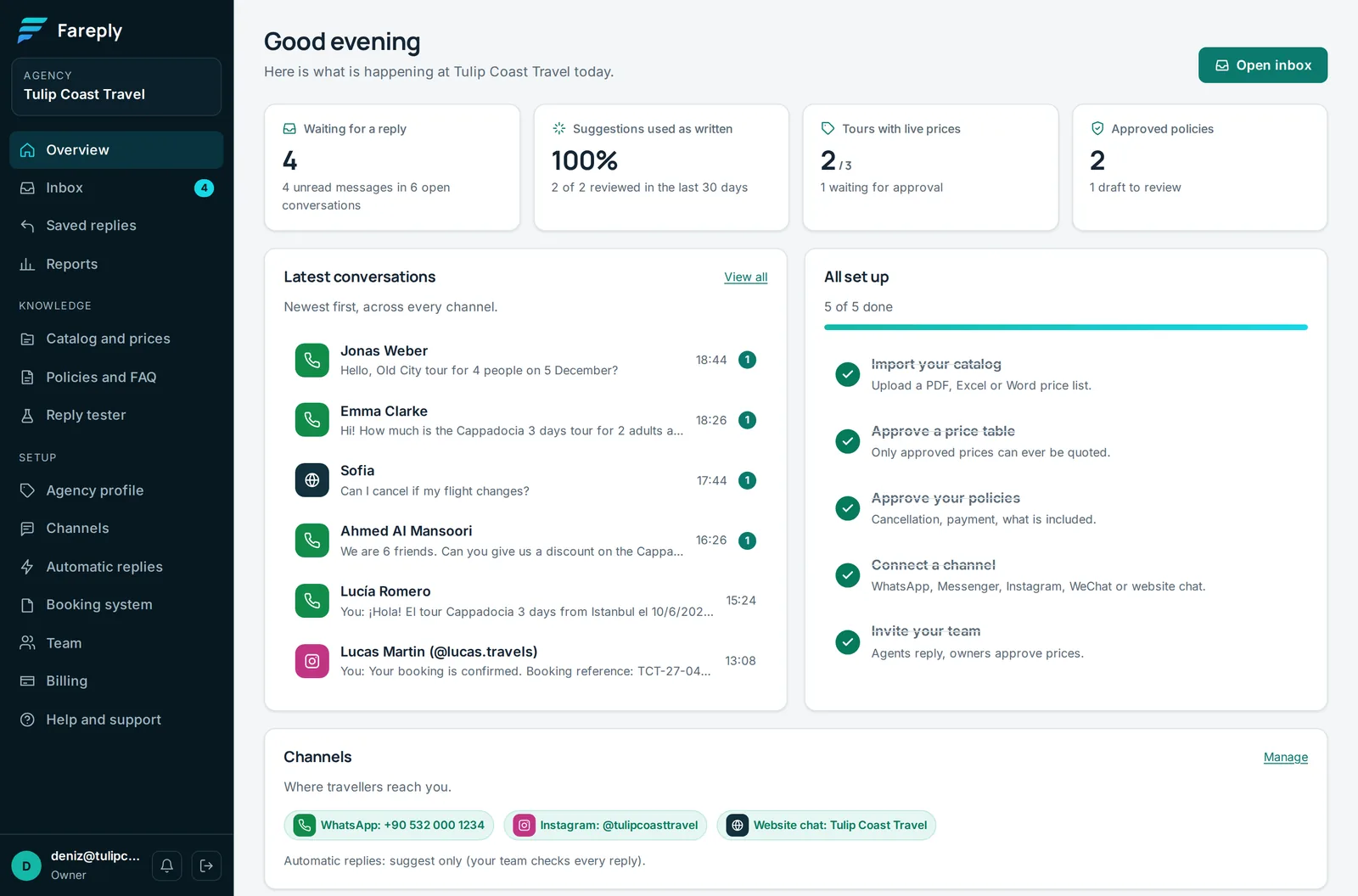
Open Agency profile. Add your name as travellers should see it, website, phone, email, logo, brand colour, time zone and main currency. The name, logo and colour appear in your website chat; the legal name, address and tax number go in the footer of your quote PDFs.
Step 2: Import your rate sheet
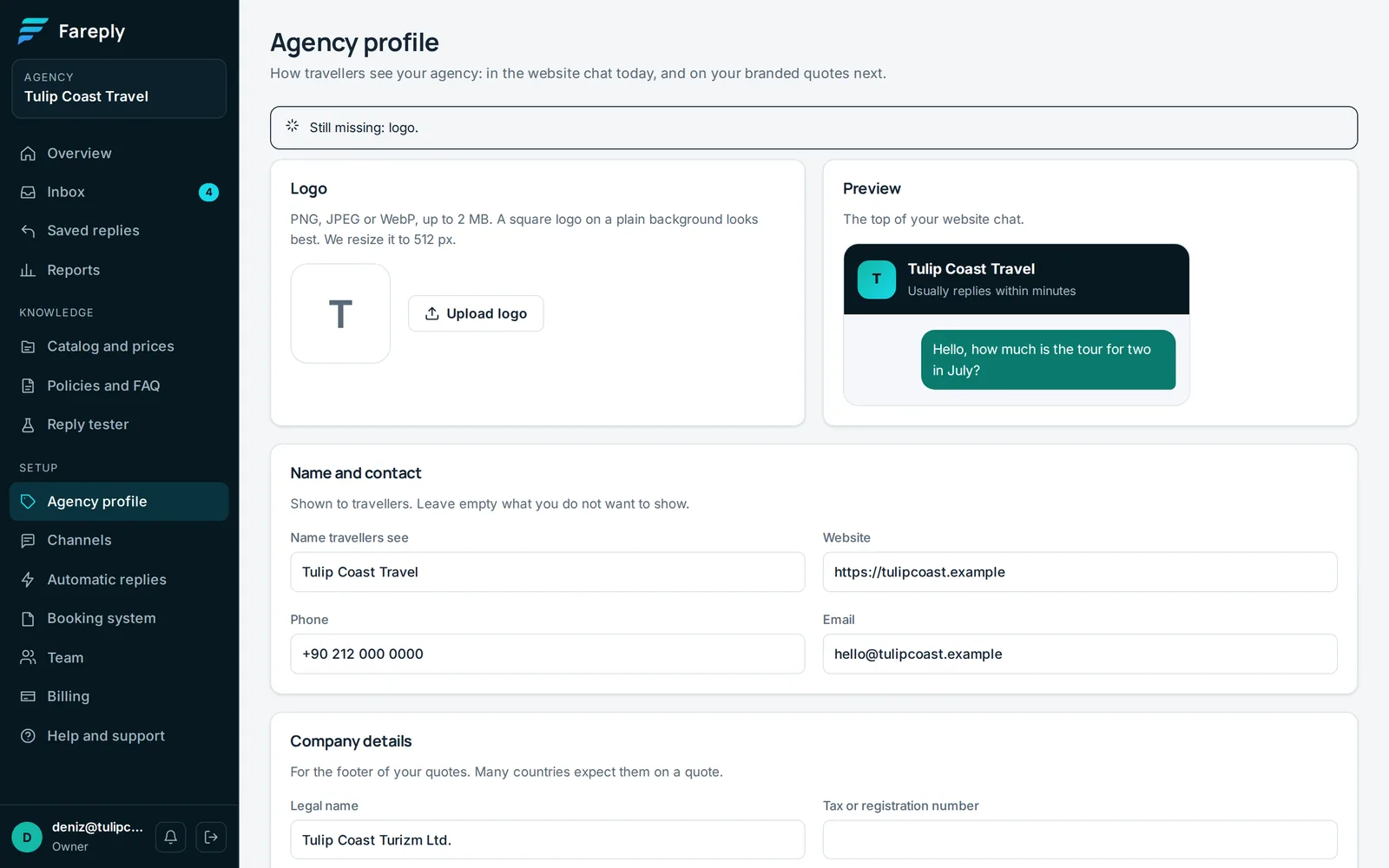
Open Catalog and prices and choose your file under Import a price list. PDF, Excel (.xlsx), Word (.docx), PNG and JPG work, up to 20 MB. Fareply reads it in a few minutes and the status changes to Ready to review.
Open the file to review it. Every price is shown next to the exact text it came from in your document, with the page number.
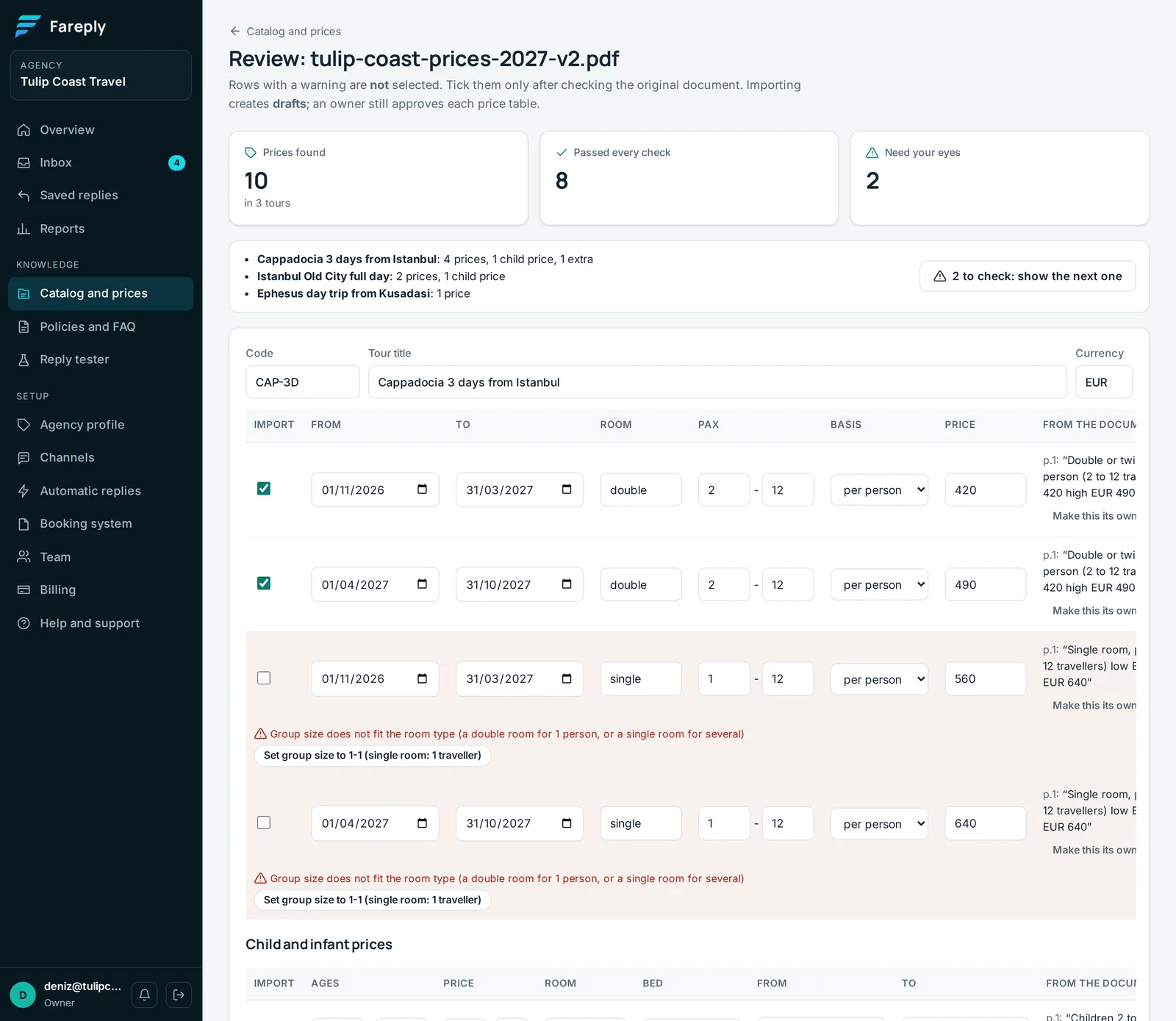
- Passed every check: the price appears in the quoted text, the text appears in your document, and dates and group sizes make sense. These are ticked for import.
- Need your eyes: something did not add up, for example a single room priced for a group of 12. Read the warning, use the one-click fix if it is right, or untick the row. Fixes change dates or group sizes, never a price.
- Child prices and extras (like a balloon flight) are listed in their own sections.
Click Create drafts. Policies found in your document, such as cancellation terms, are added as drafts to Policies and FAQ. More detail: upload a rate sheet and approve prices.
Step 3: Approve prices and test a quote
Nothing goes live until an owner approves it. Open each tour from Catalog and prices, check the draft table and click Approve.


Use Test a quote on the tour page to see exactly what a traveller would be quoted. Enter a date, the number of travellers (children included) and the children's ages.
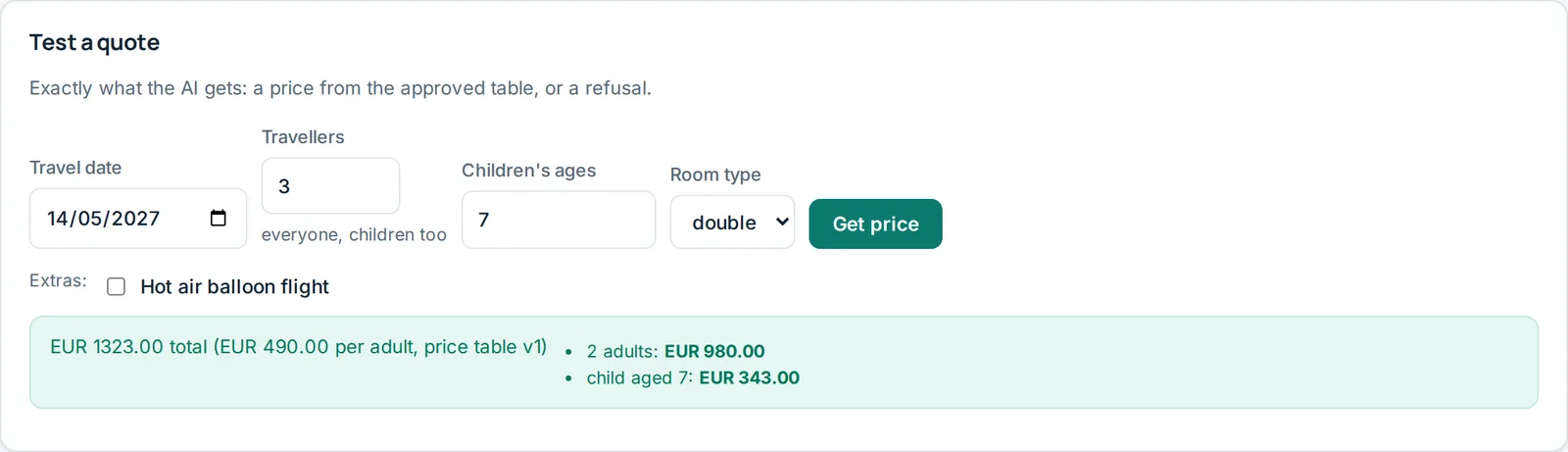
Approved tables cannot be edited, so every quote can be traced to the version it came from. To change prices, click Start from the live version, edit, save the draft and approve it. The new version replaces the old one.
Step 4: Policies and FAQ
Questions that are not about price ("Can I cancel?", "Is lunch included?") are answered only from texts an owner approved. Open Policies and FAQ, approve the drafts found in your rate sheet, and add your own: choose Policy, FAQ or Pricing rule, write the topic and the text exactly as travellers should read it, then Add as draft and Approve.
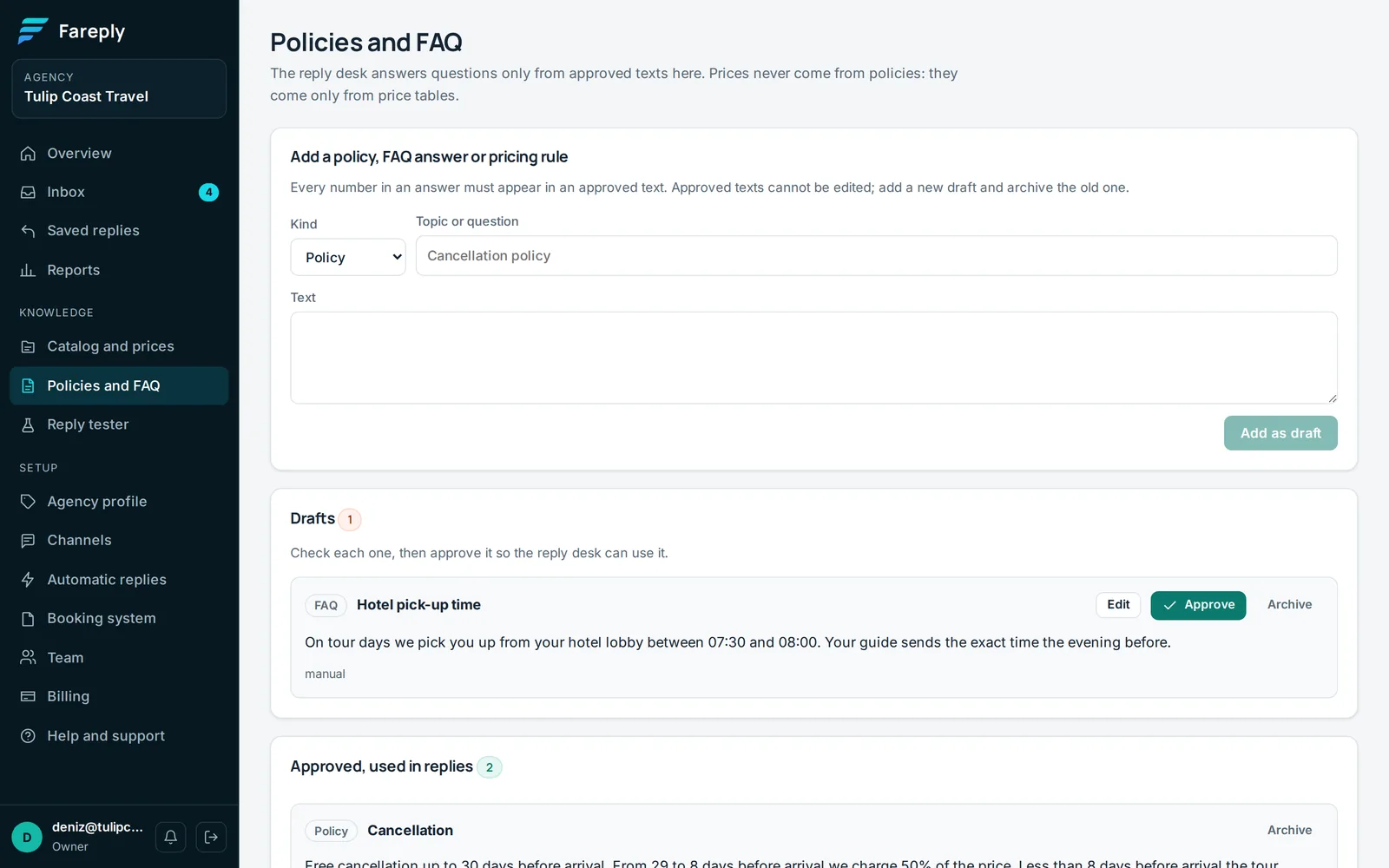
Every number in an answer must appear in your text or in the traveller's message, and an answer that mentions money is stopped and handed to a person. More: policies, FAQ and the Reply tester.
Step 5: Connect your channels
Open Channels (owners). Connect the places your travellers already write to you:
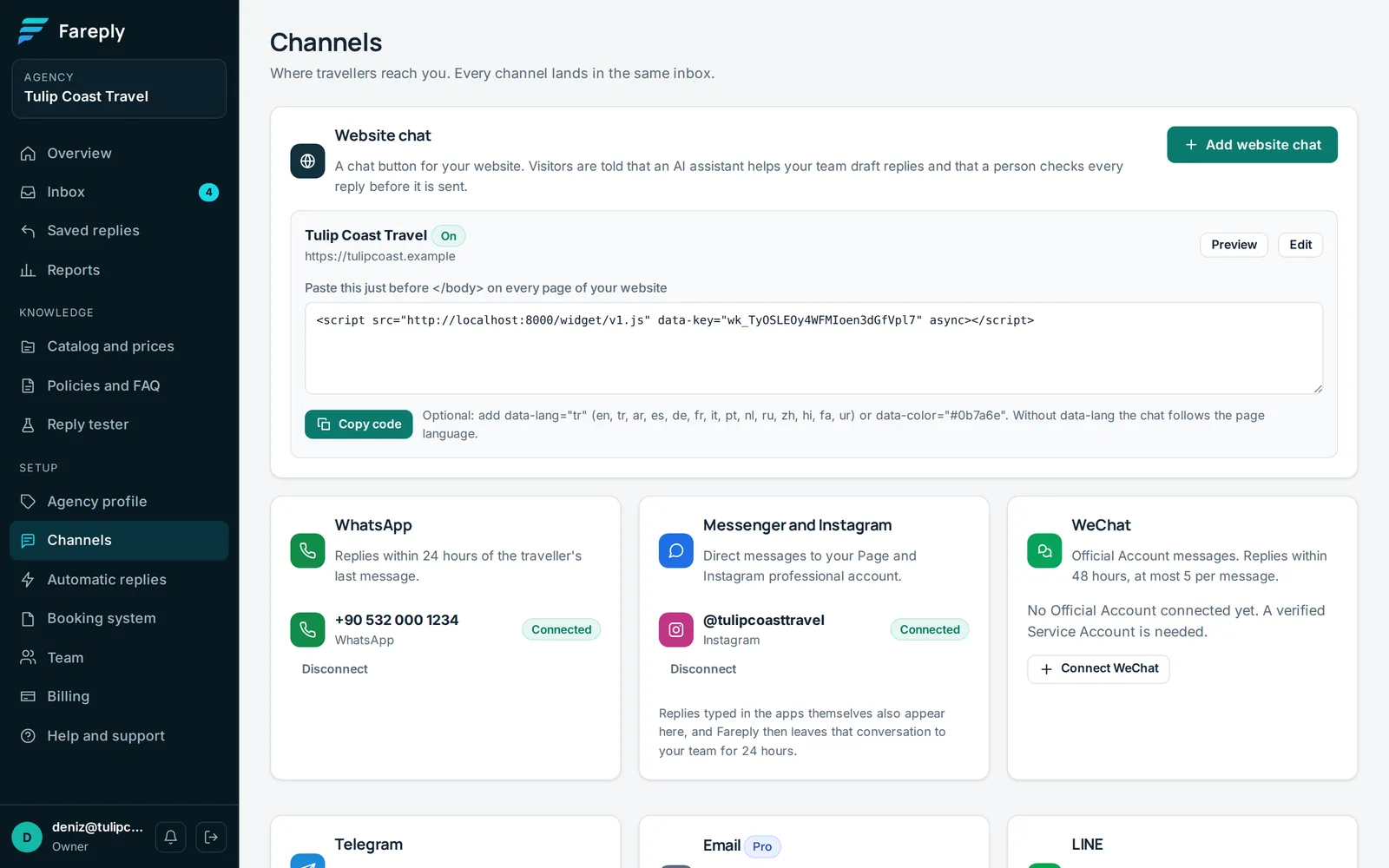
- WhatsApp: your WhatsApp Business number.
- Messenger and Instagram: your Facebook Page and Instagram professional account.
- Website chat: copy one line of code into your website.
- Email, WeChat and Telegram and LINE.
Step 6: Try the Reply tester
Before travellers do, write a question the way a traveller would in Reply tester and click Draft reply. You see the exact reply, the prices and policies it used, and every check. Nothing is sent, and tests do not count toward your AI replies.
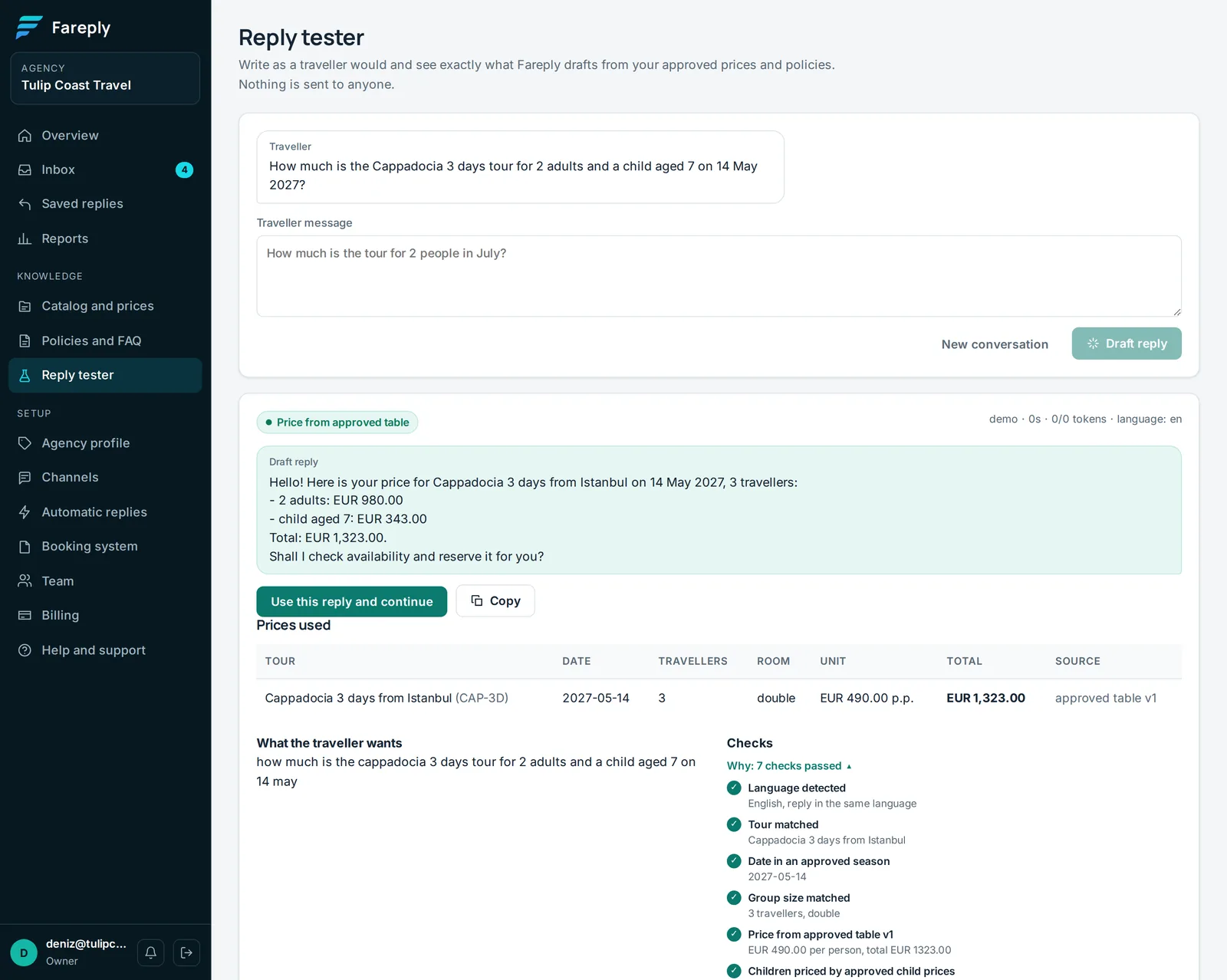
Try the questions you get most, in the languages you get them. If Fareply hands over where you expected an answer, the checks tell you what is missing: a season, a room type, a child price or a policy.
Step 7: Invite your team
On Team, owners invite colleagues by email as Agent or Owner. Agents answer travellers and prepare drafts; owners also approve prices and policies, manage channels, automatic replies and billing.
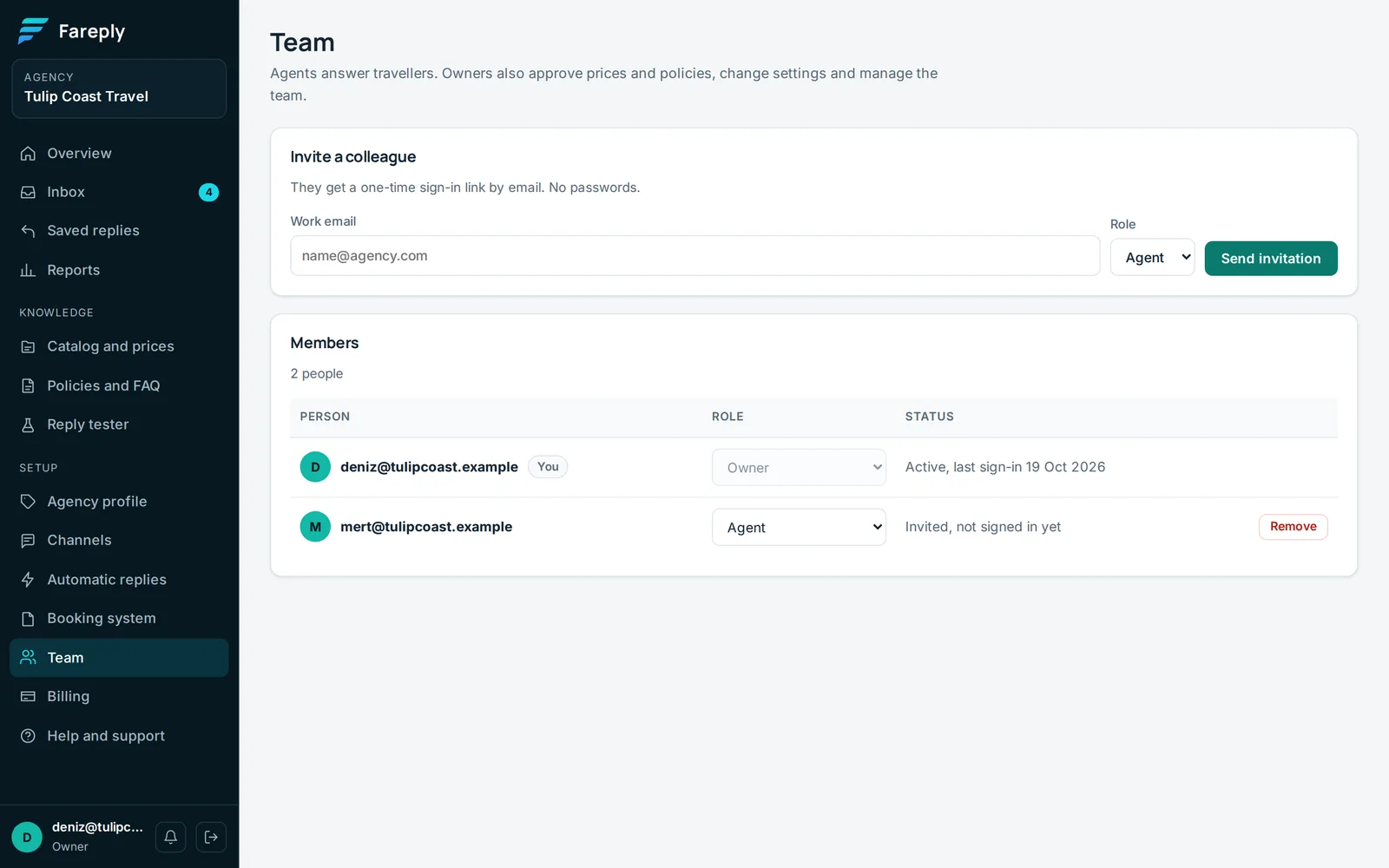
Keep at least two owners so approvals never wait. More: team and roles.
Working in the inbox
Open a conversation. When Fareply has a suggestion, it is already in the reply box. Check it, edit if you like, and press Send (or Ctrl+Enter). Nothing is sent until you do, unless you switch on automatic replies.
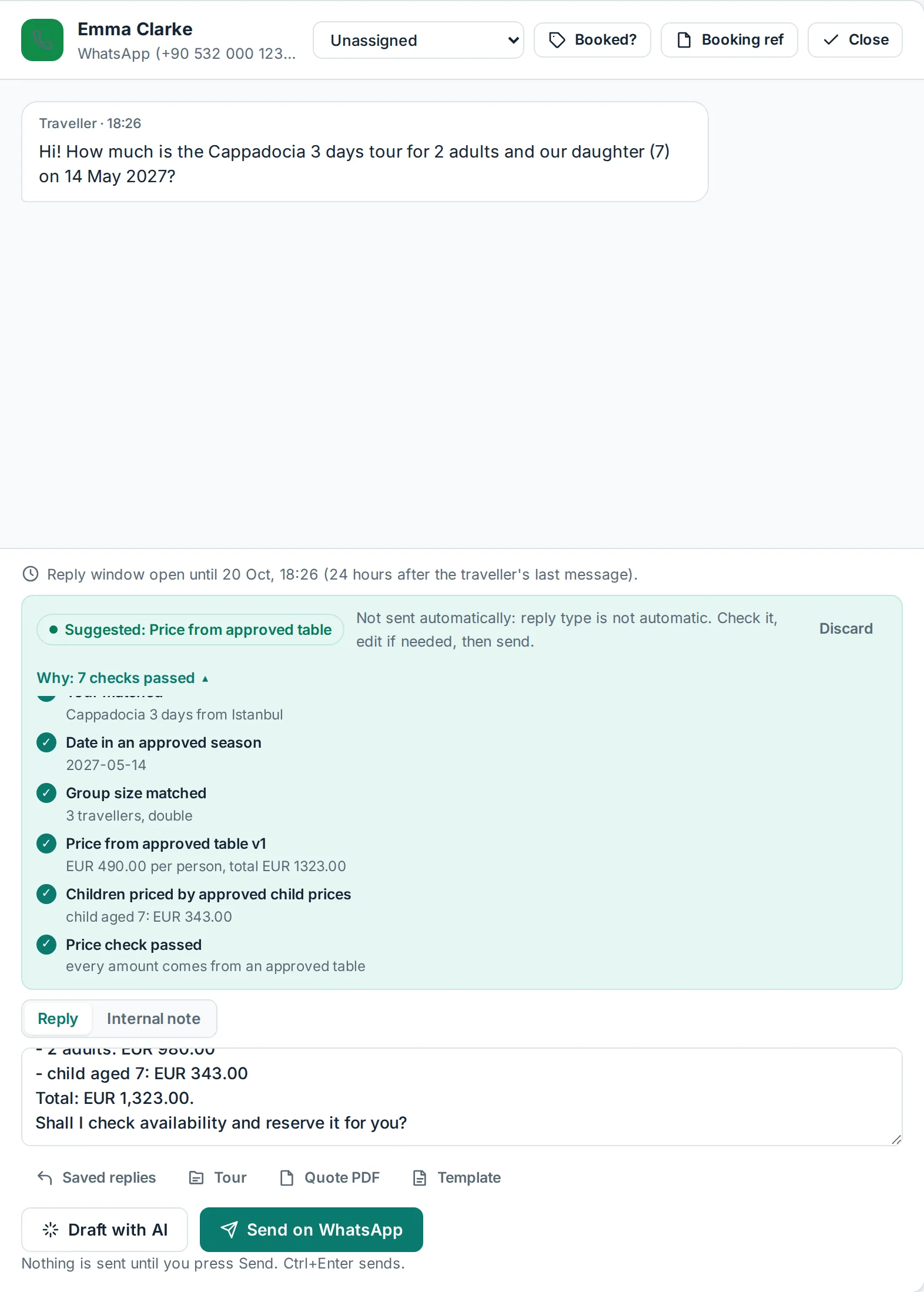
Tools under the reply box:
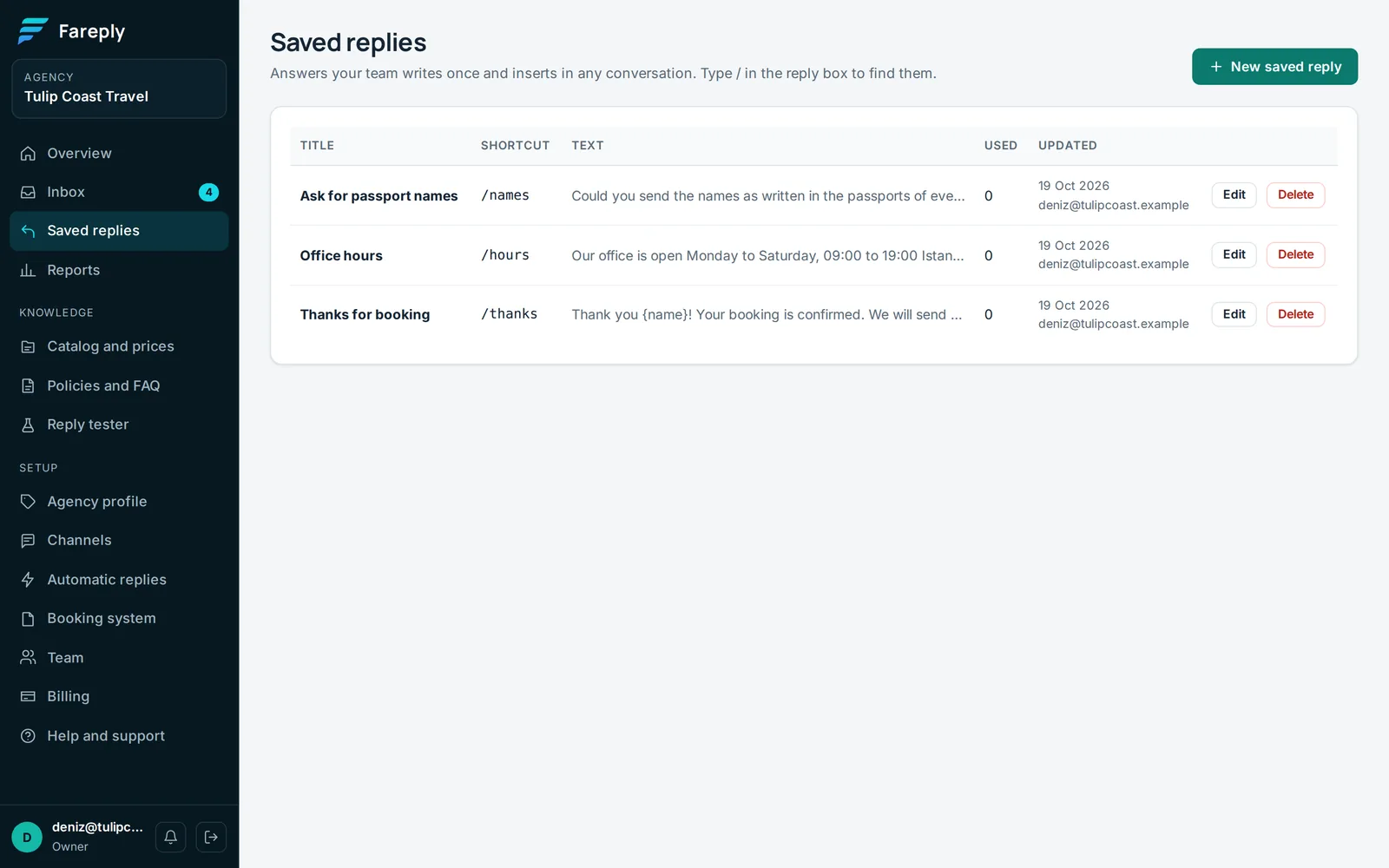
- Saved replies: type
/to insert one. Create them on the Saved replies page;{name}becomes the traveller's first name. - Tour sends a tour card with the "from" price of the approved table.
- Quote PDF makes a branded PDF quote from your approved prices (all plans except Starter).
- Draft with AI asks for a fresh draft for the latest message.
- Internal note is for your team only. Assigned to sets who handles the conversation.
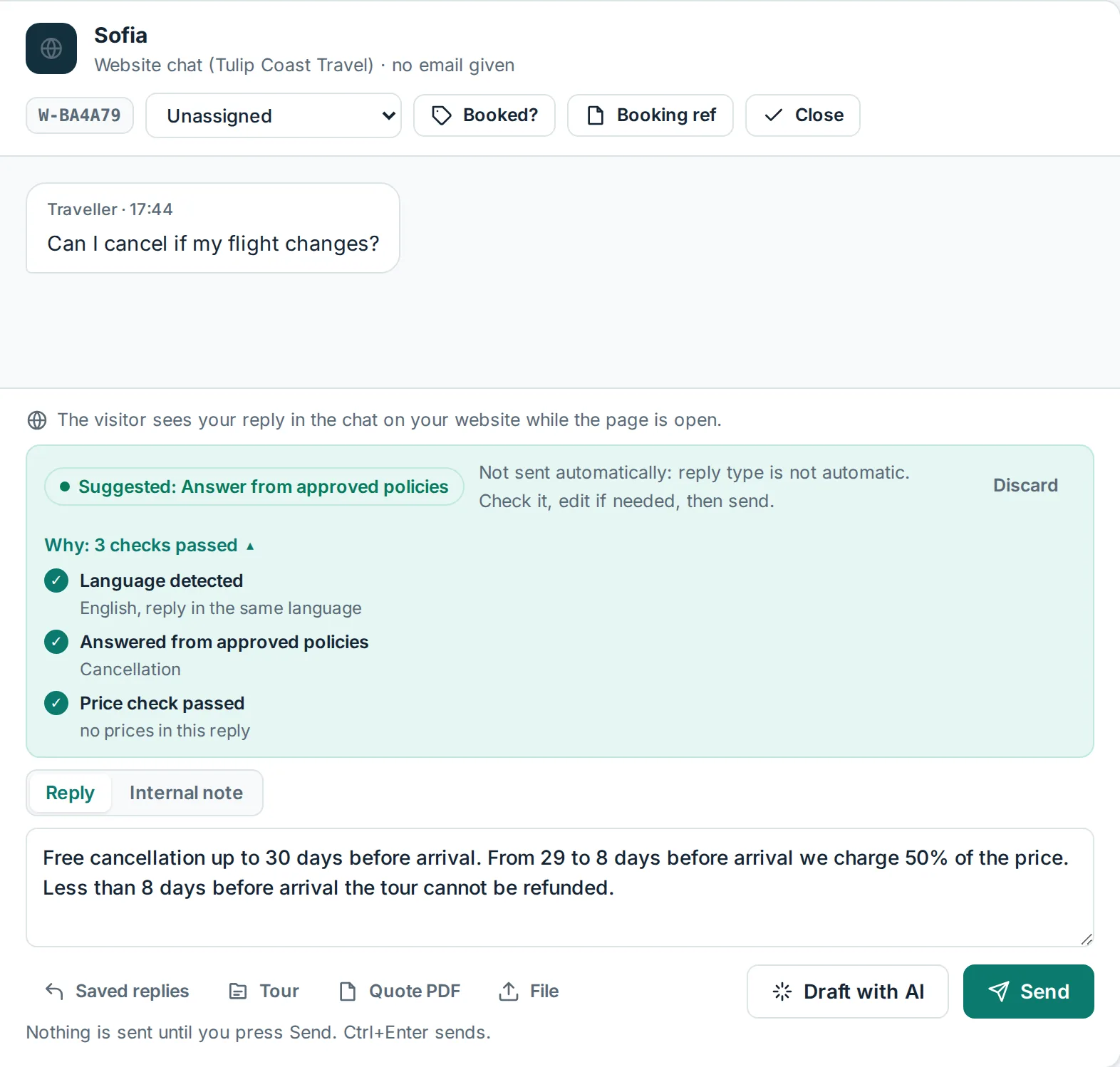
Policy questions are answered from your approved texts, and the reply names the text it used:
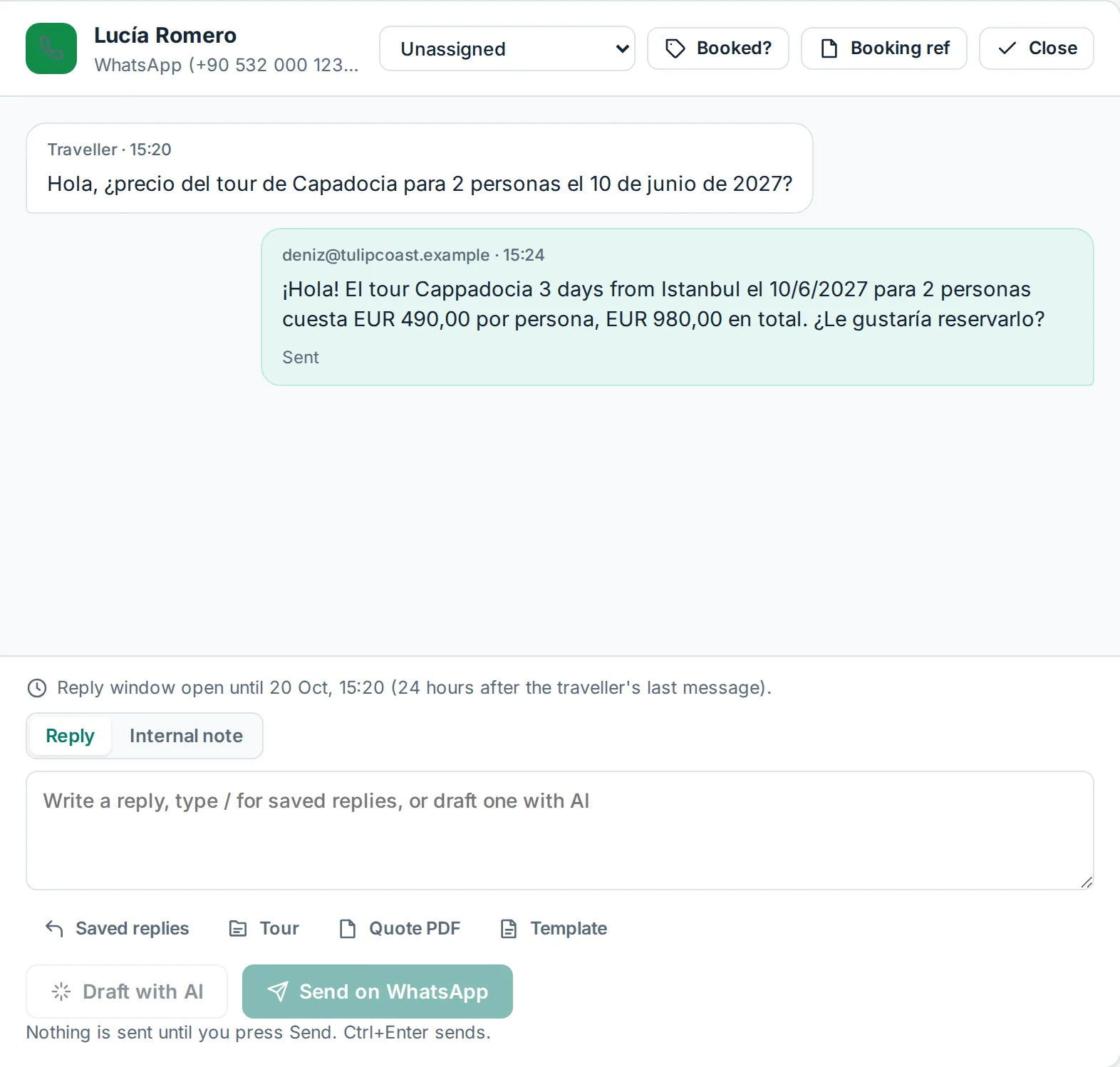
Travellers get replies in their own language. Your prices and tour names stay exactly as approved:
When Fareply hands over to a person
When a message needs a decision, Fareply suggests a short holding reply ("A colleague will reply shortly") and shows why under Why. These replies are never sent automatically.
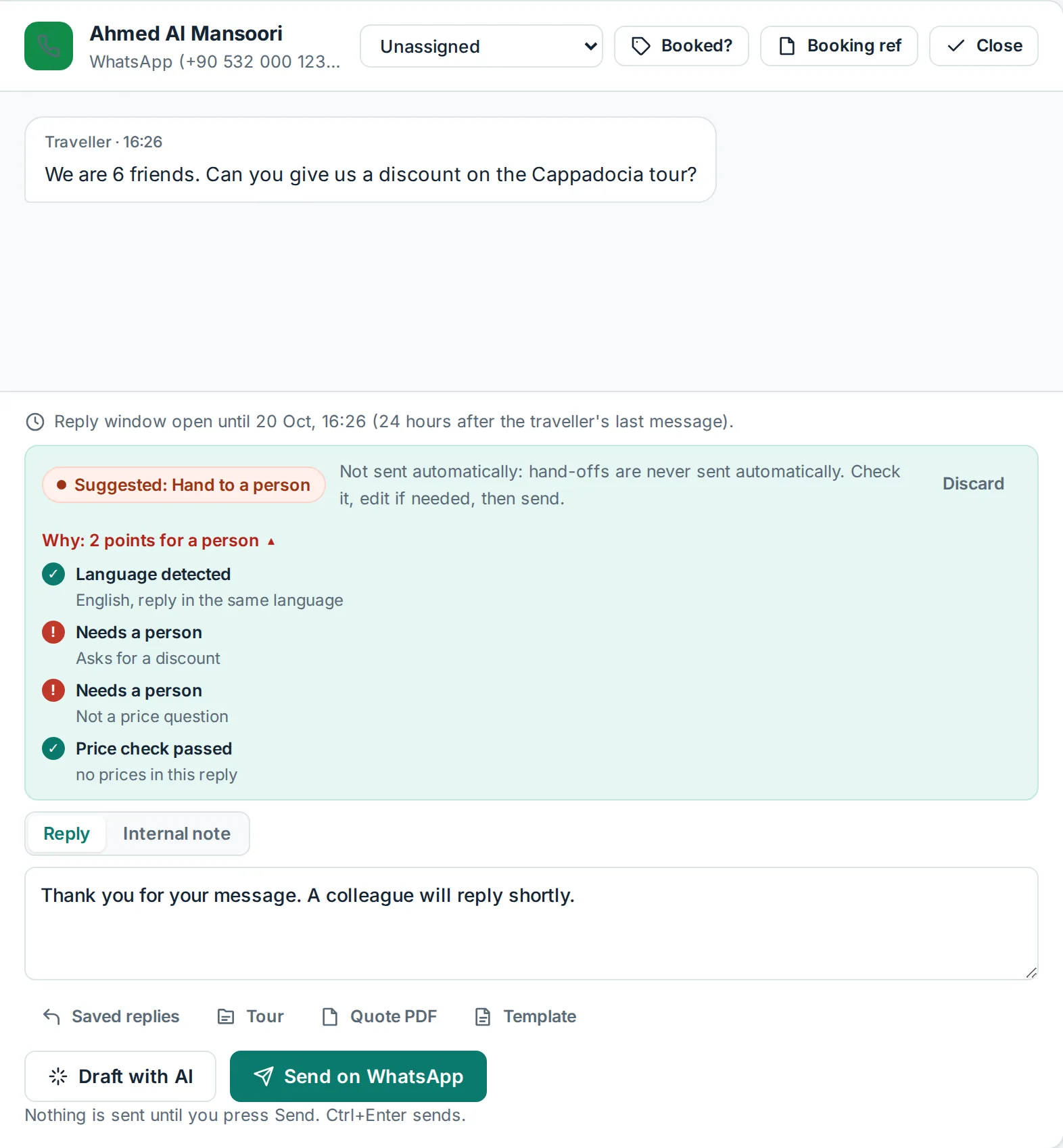
Always for a person: bookings, discounts, complaints, refunds, special needs and custom itineraries. Some hand-overs you can fix, for example a missing season or a child price; the full list is in why a reply was handed to a person.
From quote to booking
- The traveller says "please book". Fareply hands over: you check availability and reserve in your own booking system as usual.
- Click Booked? on the conversation. It records the last quoted total, so reports show real conversions.
- Click Booking ref, paste the reference from your booking system and choose Confirmed. Fareply writes the confirmation in the traveller's language; check it and send.
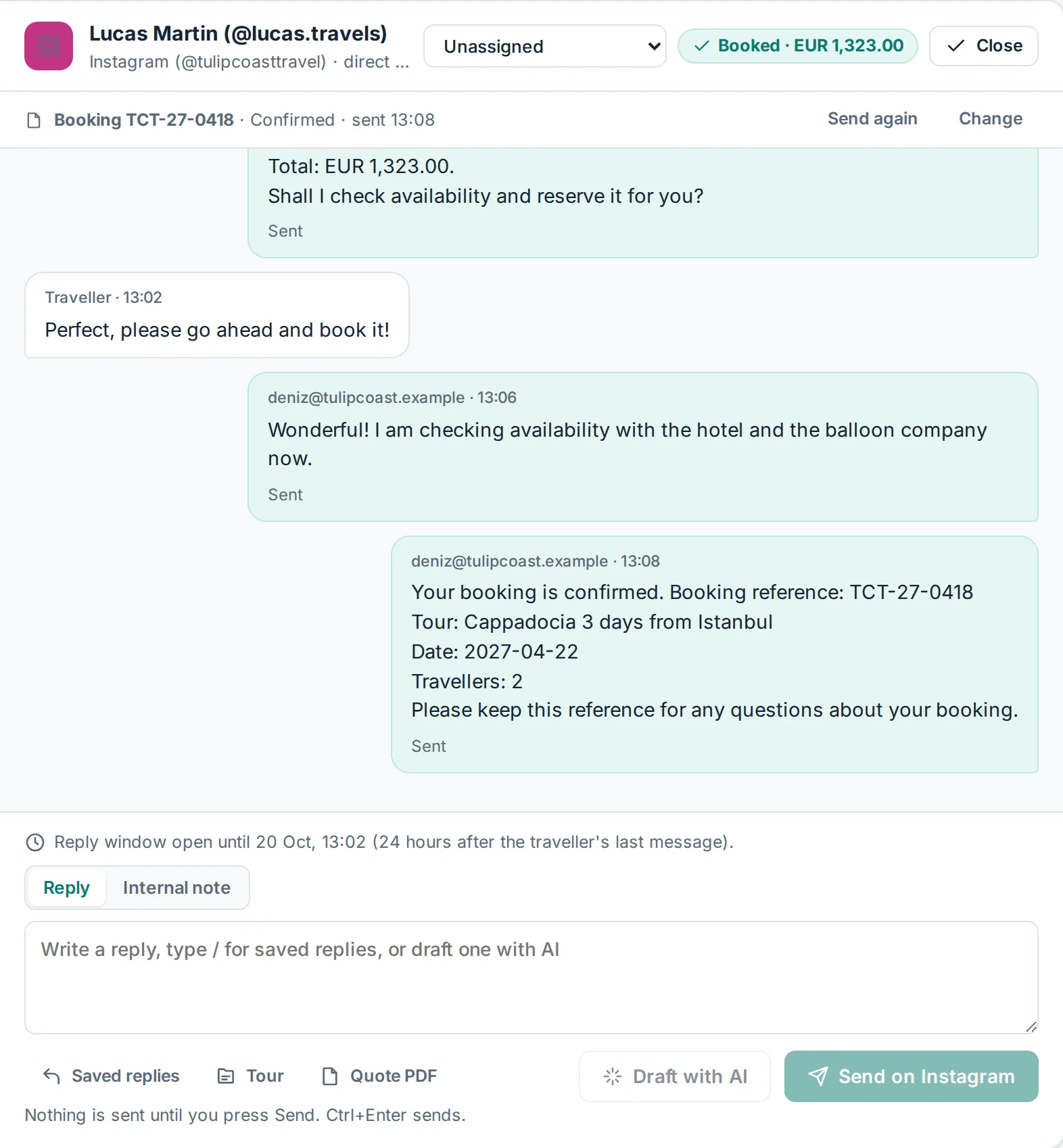
Your booking system can also send references to Fareply on its own. See booking references and confirmations.
Switch on automatic replies
Every reply type starts as Suggest only. We recommend two weeks like that. On Automatic replies, each type shows how often your team changed the suggestions; it says Ready for automatic after 20 reviewed suggestions with 10% or fewer changed.
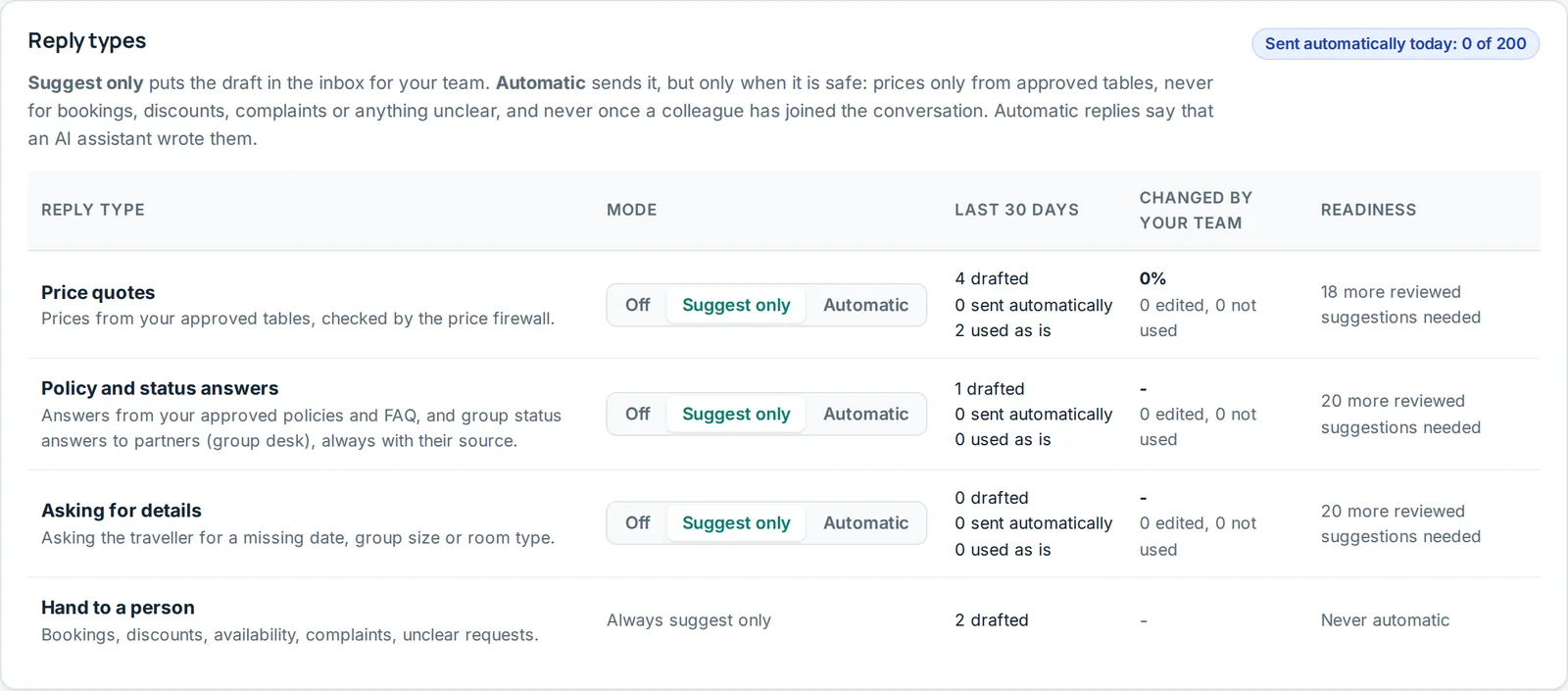
- Channels and hours: for example automatic only at night, when nobody is in the office.
- Daily limit: after that many automatic replies in a day, Fareply only suggests.
- Follow-up reminders: the inbox reminds you when a traveller has not answered a quote.
Automatic replies say an AI assistant wrote them, stop for 24 hours when a colleague replies in the conversation, and Pause all automatic replies stops everything at once. More: automatic replies.
Overview and reports
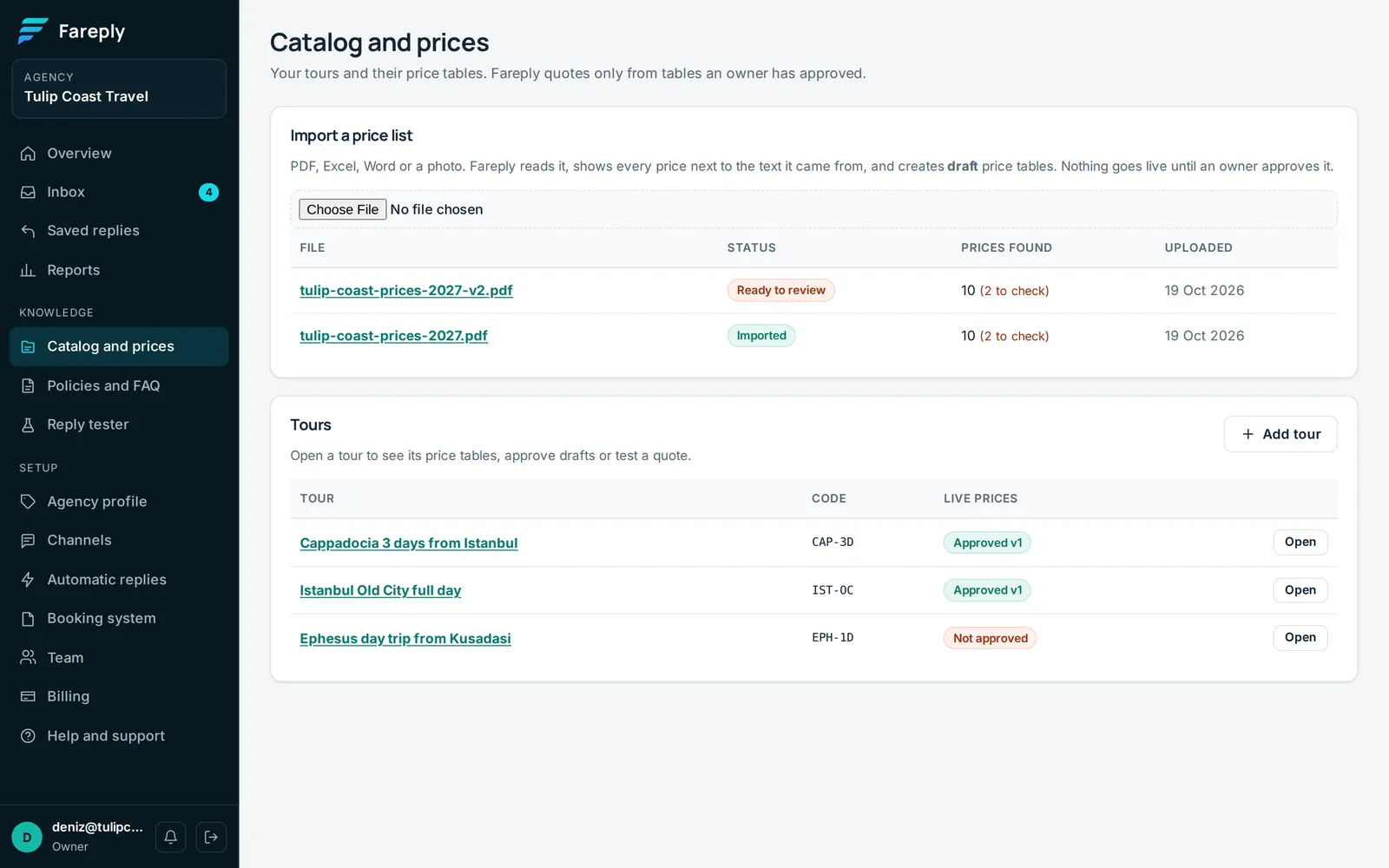
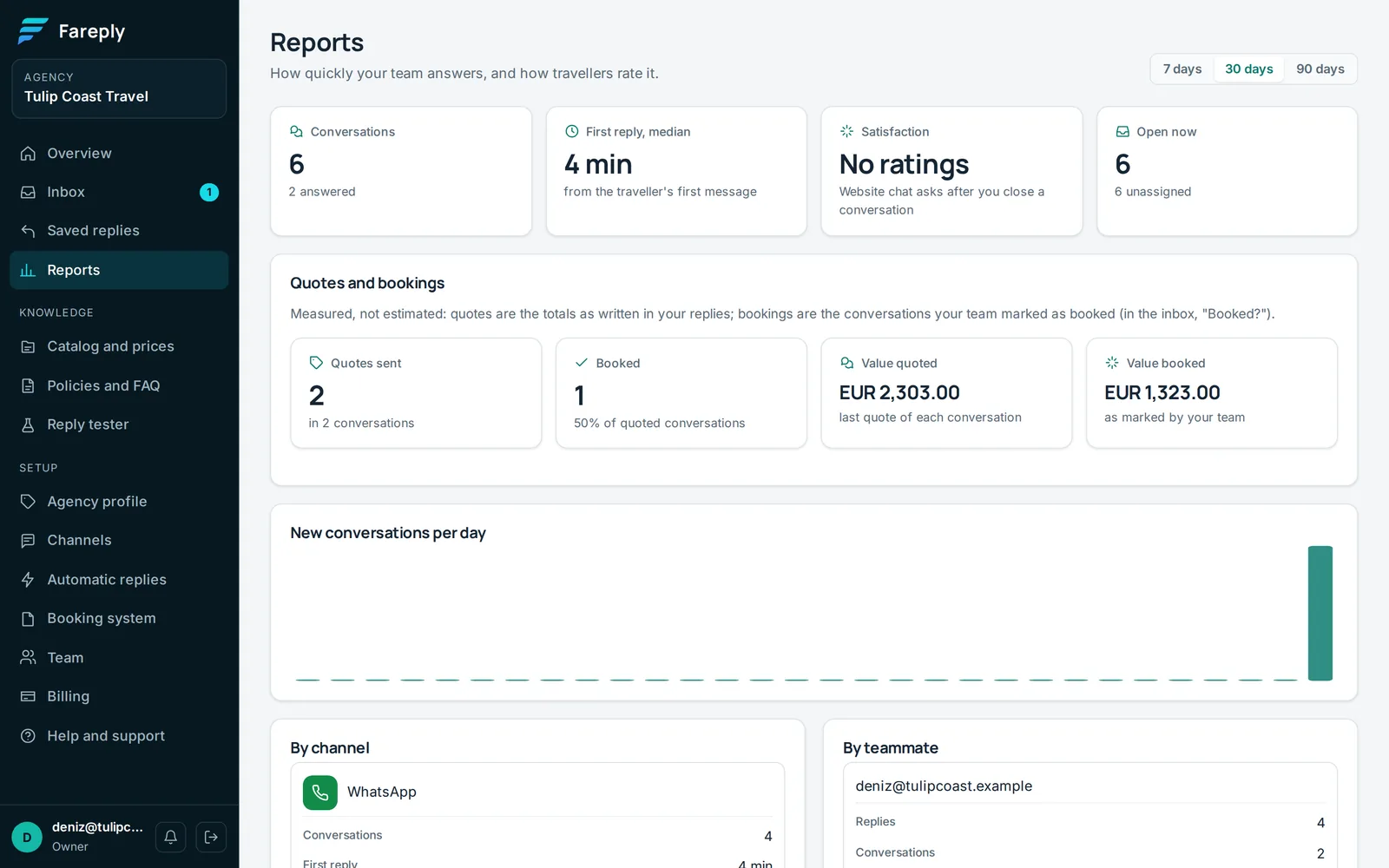
Overview is your start page: what is waiting, how much of the AI's work your team used as written, and the latest conversations. Reports shows how fast your team answers, quotes sent, bookings and their value, per channel and per teammate.
A normal day with Fareply
- Morning: open the Inbox, filter Unassigned, and send or edit the suggestions waiting from the night.
- All day: check each suggestion and send. Take over hand-offs yourself.
- When someone books: Booked?, then Booking ref, then send the confirmation.
- When prices change: start a new version of the table from the live one and approve it. Replies use the new prices from that moment.
- When a question keeps going to a person: add the answer on Policies and FAQ, approve it, and check it in the Reply tester.
- Once a week: look at Reports and the Automatic replies readiness. Switch a type to Automatic when it is ready.
Questions and problems
Fareply did not suggest a reply
Check that the reply type is not Off on Automatic replies, that your trial or plan has AI replies left (Billing), and that the message came from a traveller. Click Draft with AI to ask again.
The price in the reply is wrong
The reply always uses the approved table. Open the tour, use Test a quote with the same date and travellers, and check the season and room type. Fix it in a new version and approve it.
The reply was handed to a person, but I expected a price
Open Why. Common reasons: the date is outside your seasons, the room type or a child price is missing, or the tour has no approved table yet. See why a reply was handed to a person.
"The AI draft was blocked"
The price check found an amount that did not come from your table, so the draft was never shown or sent. Write this reply yourself. If it happens often for one tour, tell us from Help and support.
A colleague cannot approve prices
Only owners approve prices and policies. An owner can change their role on Team.
Can I keep using my own booking system?
Yes. Fareply never books anything itself. You book as usual and add the reference in the conversation, or let your system send it.